This is the full developer documentation for Monitorable
# Monitorable documentation
> Monitor Linux servers with one agent per server — installed in five minutes, with metrics panels and alerting out of the box.
Monitorable monitors Linux servers. You install one agent on each server with a single command; it reports CPU, memory, disk, network, Docker containers, systemd services, and disk health to the dashboard, and alerting reaches you by email, Telegram, Discord, Slack, PagerDuty, webhook, or ntfy. The agent is a custom build of the OpenTelemetry Collector, and metrics travel as standard OTLP.
New here? Start with the Quick start — it takes an account from empty to live metrics in about five minutes:
[Quick start](/docs/getting-started/)Sign in, add a server, run one install command, and see live metrics.
## Agent
[Section titled “Agent”](#agent)
The component you install on each server — how to set it up and exactly what it’s allowed to do:
[Install the agent](/docs/agent/install/)Get the install command, run it as root, and confirm metrics are flowing.
[Requirements & permissions](/docs/agent/requirements-permissions/)What the agent needs, and every privilege the install grants.
[What the agent collects](/docs/agent/what-is-collected/)Every metric and field that leaves your server — and what never does.
[Update or uninstall the agent](/docs/agent/updating-uninstalling/)Upgrade by re-running the install command, or remove the agent cleanly.
## Metrics & panels
[Section titled “Metrics & panels”](#metrics--panels)
What a server’s page shows and how to read it:
[Host metrics panels](/docs/metrics/host-metrics/)The status bar, CPU/memory/disk/network panels, time ranges, and stats.
[Docker containers](/docs/metrics/docker-containers/)Containers appear automatically, with alerts when one stops or turns unhealthy; CPU is per core, like docker stats.
[systemd services](/docs/metrics/systemd-services/)A 5-minute snapshot of your services — failed units first, with an alert when one fails or keeps restarting.
[Listening ports and connections](/docs/metrics/listening-ports/)Which TCP ports a server listens on and how many connections each carries, with an optional alert when one disappears.
[Disk health (SMART)](/docs/metrics/disk-health-smart/)Per-drive SMART verdicts, wearout, and errors on bare-metal servers, each with an alert rule.
## Alerting
[Section titled “Alerting”](#alerting)
Templates, incidents, and where notifications go:
[How alerting works](/docs/alerting/overview/)Templates bundle rules, channels, and reminder policy; incidents fire and resolve per server.
[Notification channels](/docs/alerting/notification-channels/)Email, Telegram, Discord, Slack, PagerDuty, webhook, or ntfy — with a test button and daily caps.
[Alert rules](/docs/alerting/rules/)All 20 rule types with defaults, limits, and exactly when each fires — and how to set one up.
## Account & data
[Section titled “Account & data”](#account--data)
Signing in and how long your data is kept:
[Sign in & account](/docs/account/sign-in/)Passwordless: Google, GitHub, or a one-time email link and code.
[Metrics history & resolution](/docs/account/metrics-history/)Per-minute detail for 35 days, hourly history for 400 — and what deletes data.
## Troubleshooting
[Section titled “Troubleshooting”](#troubleshooting)
[No data appearing](/docs/troubleshooting/no-data/)The agent is installed but nothing arrives: the checks, from service state to delivery errors.
[A panel is missing or empty](/docs/troubleshooting/missing-panels/)Panel-by-panel checks separating by-design absence from a fixable permission gap.
[FAQ](/docs/faq/)Linux-only, OpenTelemetry-native, under 1% of a core — the short answers.
# Metrics history & resolution
> Per-minute detail for 35 days, hourly history for 400 days — charts switch automatically, and a removed server's history ages out on the same schedule.
Metrics are kept at two levels of detail, and there is nothing to configure or pay attention to — charts pick the right one from the time range you select:
| Detail | Kept for |
| ------------------------- | -------- |
| Per-minute (as collected) | 35 days |
| Hourly summary | 400 days |
The hourly summary is built continuously from the per-minute data: gauge-style metrics (CPU, memory, temperatures) keep their hourly average, counter-style metrics (network and disk totals) their hourly progression.
## How charts choose
[Section titled “How charts choose”](#how-charts-choose)
The chart range picker runs from **1H** to **1Y**. Ranges up to 24 hours draw per-minute points, ranges up to 30 days hourly averages, and longer ones two-hour averages. A custom range that starts more than 32 days ago draws two-hour averages from the hourly summaries, however short it is, so any day in the last 32 days can be opened minute by minute, a few days inside the 35 that per-minute data is kept. Either way a chart’s right edge is current — a 3-month chart still ends at now, not at the last completed hour.
Two things follow from the resolution switch:
* A short spike — a two-minute CPU burst, say — is visible on ranges up to 24 hours within the last 32 days, but flattens into its hourly average on longer ranges. If a brief event from months ago matters, the alert incident it fired is a better record than the chart.
* The [per-chart stats](/docs/metrics/host-metrics/#reading-a-chart-panel) (Cur/Avg/p95/Max) are computed from the points the chart is showing, so they follow the same resolution as the chart itself.
## When data is deleted
[Section titled “When data is deleted”](#when-data-is-deleted)
* **Age**: per-minute data past 35 days and hourly data past 400 days expire on their own. Your plan sets how far back charts can query (15 days on Lite, up to a year), which is a query window, not deletion — see [the limits answer in the FAQ](/docs/faq/#are-there-limits-on-servers-or-alerts).
* **Removing a server** takes the server and its records out of your account immediately, with no undo, and revokes its API key. Its metric history is no longer reachable from the dashboard but is not purged on the spot — it ages out on the schedule above. The confirmation and its consequences are covered in [Update or uninstall the agent](/docs/agent/updating-uninstalling/#uninstall-half-two-remove-the-server-in-the-dashboard).
* A server that is merely **offline** keeps its history: data already reported stays until it ages out on the schedule above, so a decommissioned-but-not-removed server’s charts remain readable for weeks.
There is no self-service account deletion yet — removing your servers takes them out of your account, but the account itself currently stays and stored metrics age out rather than being purged. To have everything deleted, email .
# Sign in & account
> Passwordless — continue with Google or GitHub, or get a one-time link and 6-digit code by email. An account is created on first sign-in.
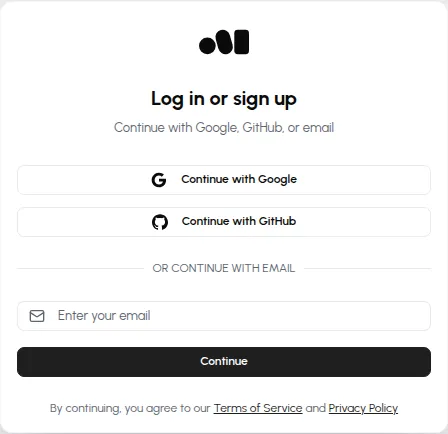
There are no passwords. The dashboard’s sign-in page offers three ways in — Google, GitHub, or a one-time email — and all three lead to the same kind of account. Signing in with an address (or an OAuth identity) that has no account yet creates one on the spot; there is no separate registration form.
## Email: a link and a code
[Section titled “Email: a link and a code”](#email-a-link-and-a-code)
Enter your address and click **Continue**. One email arrives, carrying both a sign-in link and a 6-digit code — two forms of the same credential, so you can click the link on the device you’re on, or read the code from a phone and type it where you’re signing in.
The pair is valid for **15 minutes** and is single-use: consuming either the link or the code invalidates both. Past the 15 minutes, just request a new email — codes that expired unused simply stop working, with nothing to clean up.
## Google and GitHub
[Section titled “Google and GitHub”](#google-and-github)
**Continue with Google** and **Continue with GitHub** run a standard OAuth flow — Monitorable asks the provider for your name, email address, and avatar, and nothing else. No password ever exists on our side either way.
## One account per email address
[Section titled “One account per email address”](#one-account-per-email-address)
Your email address is what identifies the account, however you sign in. If you continue with Google or GitHub and the provider reports an address that already has a Monitorable account, the OAuth identity is linked to that existing account — servers, alert templates, and history are all still there. The same works in reverse: an email sign-in with the address your OAuth provider uses lands in the same account.
# Install the agent
> Get the install command from the dashboard, run it as root on your Linux server, and verify the agent service is running.
Each server you monitor runs one agent, installed by a script with a per-server API key. The install takes about a minute; the first metrics arrive about a minute after that.
You need:
* A Linux server on x86\_64 (amd64) or arm64, with systemd and `curl`. Bare metal, VMs, and LXC containers all work. The agent is Linux-only.
* Root access on that server. Installing needs it; the agent itself then runs as an unprivileged user — see [Requirements & permissions](/docs/agent/requirements-permissions/).
* Outbound HTTPS from that server. The agent pushes metrics out and opens no listening ports.
## Get this server’s install command
[Section titled “Get this server’s install command”](#get-this-servers-install-command)
1. In the dashboard, open **Servers** and click **Add server**.
2. Enter a name and click **Add Server**. The name is only the label the dashboard shows — it doesn’t need to match the server’s hostname.
3. Copy the command from the **Install the agent** dialog. It embeds the API key this agent authenticates with, and it is shown only once.
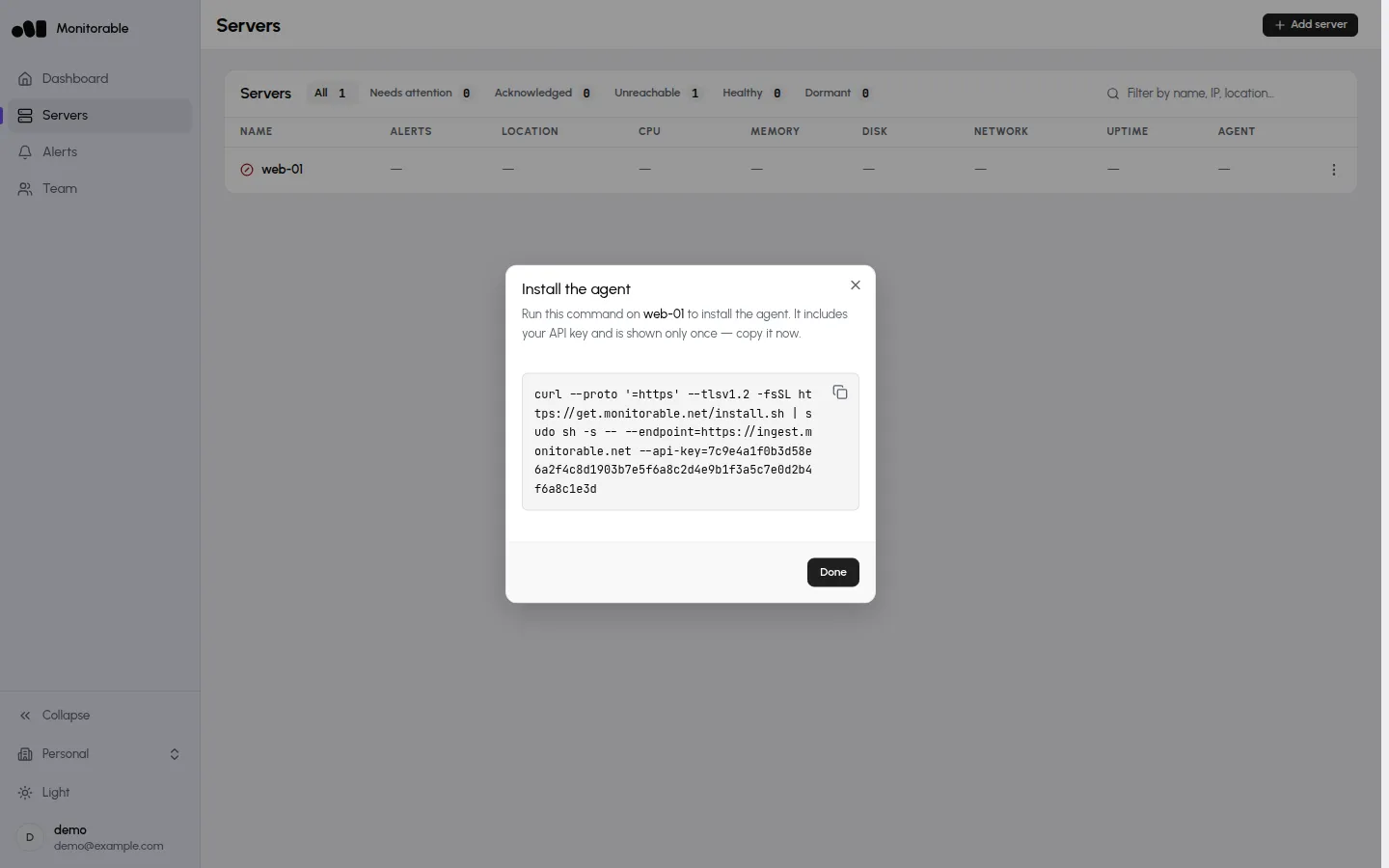
If you closed the dialog without copying, remove the server (**Server actions → Remove** on its row of the Servers page, then confirm) and add it again — you get a fresh command with a new key.
## Run the command as root
[Section titled “Run the command as root”](#run-the-command-as-root)
Paste the command into a root shell on the server. It has this shape:
```bash
curl --proto '=https' --tlsv1.2 -fsSL https://get.monitorable.net/install.sh | sudo sh -s -- --endpoint=https://ingest.monitorable.net --api-key=
```
The script is [readable in your browser](https://get.monitorable.net/install.sh) if you want to inspect it before piping it into a root shell. Step by step, it:
1. Detects the OS and CPU architecture. Anything other than Linux on amd64 or arm64 exits with an error before touching the system.
2. Creates the `monitorable` system user and group, with no login shell. If a `docker` group exists, the user joins it so container metrics work.
3. Creates `/opt/monitorable` (the agent binary — no separate launcher), `/etc/monitorable` (configuration and the env file), `/var/lib/monitorable`, and `/var/log/monitorable`.
4. Downloads the agent binary for the detected platform and the base configuration, checks the release’s signed checksum file with `openssl` against the key built into the script, and verifies every download against it. If anything doesn’t match, it stops before installing.
5. Probes the server’s drives and grants SMART disk-health capabilities only if a physical NVMe or SATA drive is present — nothing on a typical VPS. [How that works.](/docs/agent/requirements-permissions/#disk-smart-capabilities-are-probed-not-blanket)
6. Writes the `monitorable-agent.service` systemd unit and a root-only `/etc/monitorable/agent.env` file holding your API key and endpoint, enables the service, starts it, and confirms it stays up.
A successful install prints each step and ends like this:
```text
🔧 Setting up systemd service...
▶️ Starting service...
✅ Service started successfully!
🎉 Installation complete!
```
After that the script prints the service status and the commands for viewing logs (`journalctl -u monitorable-agent -f`) and restarting the service (`systemctl restart monitorable-agent`).
## Confirm the agent is reporting
[Section titled “Confirm the agent is reporting”](#confirm-the-agent-is-reporting)
The agent sends its first batch about 60 seconds after the service starts: the server’s page in the dashboard switches to **Healthy** and the CPU, memory, and load panels draw their first points. On the server itself:
```bash
systemctl status monitorable-agent
```
```text
● monitorable-agent.service - Monitorable agent
Loaded: loaded (/etc/systemd/system/monitorable-agent.service; enabled; preset: enabled)
Active: active (running) since Fri 2026-07-10 21:52:18 UTC; 1h 19min ago
Main PID: 1043 (monitorable-age)
Memory: 12.0M (peak: 15.6M)
```
Panels beyond CPU and memory appear as their data arrives: Docker containers on the next collection cycle, systemd services within about 5 minutes, SMART disk health within about 15 minutes (bare-metal servers only).
## Re-run the same command to upgrade
[Section titled “Re-run the same command to upgrade”](#re-run-the-same-command-to-upgrade)
The install script is also the upgrade path — there is no auto-update. Re-running the command downloads the current agent binary, swaps it in place without stopping the running service first, refreshes the configuration and service files, and restarts the service. History and charts continue uninterrupted: the API key is what ties the agent to its server in the dashboard.
A re-run also re-probes the server, so it picks up hardware changes: if you added a physical drive or installed Docker after the first install, re-running grants the agent what those features need.
You don’t need the original command: on the server, run
```bash
curl --proto '=https' --tlsv1.2 -fsSL https://get.monitorable.net/install.sh | sudo sh
```
— the script reuses the API key and endpoint saved in `/etc/monitorable/agent.env`.
## If the service doesn’t start
[Section titled “If the service doesn’t start”](#if-the-service-doesnt-start)
The script verifies that the service stays up. If the agent exits during its first seconds, the script prints the last 20 log lines and fails instead of reporting success. To keep watching after that:
```bash
journalctl -u monitorable-agent -f
```
If the service runs but the dashboard stays empty, work through [No data appearing](/docs/troubleshooting/no-data/).
# Requirements & permissions
> Linux with systemd, outbound HTTPS only, an unprivileged sandboxed runtime user, and disk capabilities granted only when physical drives exist.
The install script asks for a root shell, so this page spells out what that root shell does and what privileges the agent is left with afterward. The short version: an unprivileged system user, no open ports, a read-only view of the OS, and disk capabilities only when physical drives exist. The script itself is plain POSIX shell, readable at [get.monitorable.net/install.sh](https://get.monitorable.net/install.sh) — you can read every line before running it.
## What the server needs
[Section titled “What the server needs”](#what-the-server-needs)
| Requirement | Detail |
| ----------- | --------------------------------------------------------------------------------------------------------------------------------------------------------------------------------------------------------------------------------------------- |
| OS | Linux on x86\_64 (amd64) or arm64. Bare metal, VMs, and LXC containers are all supported. The agent is Linux-only. |
| Init system | systemd — the agent runs as the `monitorable-agent.service` unit. |
| Tools | `curl`, used to fetch the script, binary, and configuration, and `openssl`, used to check the release signature. The script stops before changing anything if `openssl` is missing (`apt-get install -y openssl` / `dnf install -y openssl`). |
| Network | Outbound HTTPS (port 443). No inbound ports, no firewall changes. |
The agent is a single binary, about 47 MB on disk. On the small server these docs are verified against, it holds 12–16 MB of resident memory and has averaged under 0.1% of one CPU core.
## Network traffic is outbound only
[Section titled “Network traffic is outbound only”](#network-traffic-is-outbound-only)
| Destination | When | What |
| ------------------------ | ------------------------------ | ------------------------------------------------------------------------------------ |
| `get.monitorable.net` | Install, upgrade and uninstall | The install script. |
| `get.monitorable.io` | Install and upgrade | The agent binary, base configuration, service file, and the signed checksum file. |
| `ingest.monitorable.net` | Runtime, every 60 seconds | Metrics as gzip-compressed OTLP over HTTPS, authenticated with the server’s API key. |
The agent binds no listening ports — `ss -ltnp` on a monitored server shows nothing owned by it. There is no remote-control channel: the only connection is the one the agent opens to post metrics.
## Root installs it, an unprivileged user runs it
[Section titled “Root installs it, an unprivileged user runs it”](#root-installs-it-an-unprivileged-user-runs-it)
Root is needed once, for setup. The install script creates:
* The `monitorable` system user and group. The user has no login shell (`/sbin/nologin`) and no password; its home is `/var/lib/monitorable`, the agent’s only writable directory.
* `/opt/monitorable/` — the agent binary, owned by root so the agent can’t replace its own executable. There is no separate launcher.
* `/etc/monitorable/collector-config.yaml` — the agent configuration, mode `640`, readable only by root and the `monitorable` group.
* `/etc/monitorable/agent.env` — mode `600`, owned by `root:root`. Holds the server’s API key and the ingest endpoint as environment variables; nothing but root can read it.
* `/etc/systemd/system/monitorable-agent.service` — the service unit. It references the env file above (`EnvironmentFile=`) rather than carrying the API key itself, so the unit file — which is world-readable — never exposes the secret.
The service runs as the `monitorable` user, and the unit sandboxes it further. From the installed unit file:
```text
NoNewPrivileges=yes
ProtectSystem=strict
ProtectHome=tmpfs
ReadWritePaths=/var/lib/monitorable
PrivateTmp=yes
ProtectKernelTunables=yes
ProtectKernelModules=yes
ProtectControlGroups=yes
```
In practice: the agent can’t gain privileges it wasn’t started with, sees the whole OS read-only except `/var/lib/monitorable`, gets a private `/tmp`, and can’t touch kernel tunables, kernel modules, or cgroups. `/root` and users’ session directories are masked out entirely; `/home` is re-exposed read-only so the disk-usage panel can measure how full it is, with normal file permissions still applying on top.
## Disk (SMART) capabilities are probed, not blanket
[Section titled “Disk (SMART) capabilities are probed, not blanket”](#disk-smart-capabilities-are-probed-not-blanket)
Reading SMART health data from drives needs kernel capabilities that most of the agent never uses, so the install script checks `/sys/block` and grants only what the detected hardware requires:
| Detected | Granted to the service |
| ------------------------------------- | ------------------------------------------------------------------------------------------------------------------------------------------------------------------------------------------------------------ |
| NVMe drive | `CAP_SYS_RAWIO` + `CAP_SYS_ADMIN`, membership of the `disk` group, and a udev rule (`/etc/udev/rules.d/99-monitorable-nvme-smart.rules`) that lets the `disk` group open the NVMe controller node read-only. |
| SATA/SAS drives, no NVMe | `CAP_SYS_RAWIO` and membership of the `disk` group. |
| No physical drive (typical VPS or VM) | Nothing. The unit’s capability set is empty. |
NVMe needs the broader grant because SMART reads on NVMe are admin ioctls on Linux. The unit sets `CapabilityBoundingSet` to the same list as the grant, so the table above is also the ceiling — the agent can’t acquire anything beyond it. Re-running the install command re-probes the hardware, which is how you extend the grant after adding a drive.
SMART data itself appears only for bare-metal servers: virtual disks don’t expose drive health, so on a VM the probe finds nothing and no capability is granted.
## Docker socket access
[Section titled “Docker socket access”](#docker-socket-access)
If a `docker` group exists when the script runs, the `monitorable` user joins it — the standard way to grant read access to the Docker socket — and the agent reports container metrics. It probes the socket on each collection cycle, so containers show up without any configuration.
If you install Docker after the agent, the group membership is missing. [Re-run the install command](/docs/agent/install/#re-run-the-same-command-to-upgrade), or grant it directly:
```bash
usermod -aG docker monitorable
systemctl restart monitorable-agent
```
## When the agent lacks a permission
[Section titled “When the agent lacks a permission”](#when-the-agent-lacks-a-permission)
Missing privileges never break monitoring — the affected feature is skipped and reported. The **Permission Limitations** card at the bottom of the server’s page appears only when the agent skipped a check for lack of a privilege you can grant, and names the check and the grant. Today the two grants above — SMART capabilities and the docker group — are the only ones the agent needs, and both are re-probed by the install command, so the usual fix is to re-run it.
Features a server simply doesn’t have are not permission problems and never appear on the card: a virtual machine has no temperature sensors and no SMART data, so its Temp and SMART tabs stay empty without any entry here.
# Update or uninstall the agent
> Update with one command, uninstall with one command, then remove the server in the dashboard.
Updating the agent is one command. Uninstalling is two short steps — one command on the server, then one step in the dashboard — and skipping either leaves something behind. The server-side commands need a root shell.
## Update
[Section titled “Update”](#update)
```bash
curl --proto '=https' --tlsv1.2 -fsSL https://get.monitorable.net/install.sh | sudo sh
```
Re-running the install command with no arguments upgrades in place: it reads the API key and endpoint already saved in `/etc/monitorable/agent.env`, downloads the current binary, swaps it in, and restarts the service. Charts and history continue uninterrupted, and the re-run also re-probes the hardware — how the agent picks up drives or Docker installed since the first run.
If the updated agent doesn’t stay up, the command puts the previous one back — binary, configuration and service — restarts it, and exits with an error, so the server keeps reporting while you read the logs it printed. This only happens when the previous agent was running normally before the update. If an update is interrupted (for example, the SSH session drops), run the update command again.
In the dashboard, this is what **Update available** on the server’s own page, the yellow dot next to the agent version on the **Servers** list, or **Server actions → Update agent…** all run.
If the server is still on a pre-rename install (binary `monitorable-otelcol`, service `monitorable-collector`), re-running the current install command upgrades and migrates it in one step: it stops and removes the old `monitorable-collector` unit and binary once the new `monitorable-agent` binary and unit are in place, and keeps the on-disk queue — no history or in-flight batches are lost in the switch.
## Uninstall
[Section titled “Uninstall”](#uninstall)
1. **Run the uninstall command on the server:**
```bash
curl --proto '=https' --tlsv1.2 -fsSL https://get.monitorable.net/install.sh | sudo sh -s -- --uninstall
```
```text
🚀 Monitorable agent installer
================================
🧹 Uninstalling the Monitorable agent...
✓ Stopped and removed the monitorable-agent service
· monitorable-collector service: not present
✓ Deleted /opt/monitorable
✓ Deleted /etc/monitorable
✓ Deleted /var/lib/monitorable
· /var/log/monitorable: not present
✓ Removed the NVMe SMART udev rule
✓ Deleted the monitorable user
✅ Uninstalled. Now open the dashboard and click Remove for this server.
```
2. **Remove the server in the dashboard.** On the **Servers** page, open the row’s **Server actions** menu and click **Remove**. The **Uninstall the agent from web-01** screen shows the same command — run it as root on the server, and once it prints “Uninstalled” (or “Nothing to remove”), click **Continue**. (Server already gone, or the agent already uninstalled? Use the dialog’s skip link, **The server no longer exists — skip this step**.) Then confirm the **Remove web-01?** prompt with **Remove**.

Caution
Removing a server takes it out of your account immediately, with no undo, and revokes its API key on the spot. Its metric history is no longer reachable from the dashboard and ages out with the normal [retention windows](/docs/account/metrics-history/) rather than being purged on the spot — as the prompt says, “Its metrics history stays until retention expires”. Re-adding a server with the same name gives you a fresh key and empty charts — history does not carry over.
Manual removal (if the script can't be downloaded)
If you can’t reach `get.monitorable.net` from the server, remove the agent by hand — five commands.
1. Stop the service and remove it from boot:
```bash
systemctl disable --now monitorable-agent
```
```text
Removed "/etc/systemd/system/multi-user.target.wants/monitorable-agent.service".
```
2. Delete the service unit and reload systemd:
```bash
rm /etc/systemd/system/monitorable-agent.service
systemctl daemon-reload
```
From here, `systemctl status monitorable-agent` answers `Unit monitorable-agent.service could not be found.`
3. Delete the agent’s four directories — binary, configuration (this also removes `/etc/monitorable/agent.env`, which holds the server’s API key), state, and logs:
```bash
rm -rf /opt/monitorable /etc/monitorable /var/lib/monitorable /var/log/monitorable
```
4. If the install detected an NVMe drive, it added one udev rule; remove it and reload. On servers without NVMe the file doesn’t exist and the `-f` makes that a no-op:
```bash
rm -f /etc/udev/rules.d/99-monitorable-nvme-smart.rules
udevadm control --reload-rules
```
5. Delete the `monitorable` system user — this also removes its group:
```bash
userdel monitorable
```
Nothing else to hunt down: the agent never writes outside the paths above.
## If you skip one half
[Section titled “If you skip one half”](#if-you-skip-one-half)
The two halves are independent, so each can be forgotten — with a different symptom each way:
* **Agent removed, server row left in the dashboard**: the row goes **Stale** after 5 minutes and **Offline** after 15, and sits under **Unreachable** on the Servers page — or under **Needs attention** if an alert template is assigned, because the **Agent offline** rule fires for a server you meant to decommission. After 7 days without data it becomes **Dormant**. Remove the row.
* **Server row removed, agent left running**: revoking the API key turns every batch the orphaned agent sends into a rejected one; its log fills with [`Exporting failed. Dropping data.` and HTTP Status Code 401](/docs/troubleshooting/no-data/#the-logs-say-exporting-failed-dropping-data-with-http-status-code-401). The agent keeps burning CPU and bandwidth on this until you uninstall it.
# What the agent collects
> Every metric, snapshot, and metadata field that leaves your server — and what never does (no logs, no processes, no file contents).
Everything the agent sends is listed on this page. The data leaves your server as gzip-compressed OTLP over HTTPS to `ingest.monitorable.net`, in one batch per minute — there is no other channel, and the connection is always outbound ([Requirements & permissions](/docs/agent/requirements-permissions/) covers the transport and privilege model).
## Host metrics, every 60 seconds
[Section titled “Host metrics, every 60 seconds”](#host-metrics-every-60-seconds)
| What | Metrics |
| ------- | -------------------------------------------------------------------------------------------------------------------------------- |
| CPU | Time spent per core and state (user, system, idle, iowait, steal, …), current frequency, temperature (when sensors are readable) |
| Load | Load average over 1, 5, and 15 minutes |
| Memory | Usage by state, utilization, total |
| Swap | Paging usage by state |
| Disk | Filesystem usage for real mounts, I/O throughput, operation counts, I/O time |
| Network | Bytes, packets, errors, and drops per interface and direction; TCP connection counts by state |
| Uptime | Seconds since boot |
Connection counts here are aggregate totals by state (established, listening, …). Per-port counts are collected separately, below. Nothing associates a connection with a process or an address.
## Server details, refreshed with each batch
[Section titled “Server details, refreshed with each batch”](#server-details-refreshed-with-each-batch)
The metrics arrive labeled with a metadata snapshot of the server:
* Hostname, OS name and version, kernel version, CPU architecture
* CPU model and core/thread counts, total memory, a reboot-required flag
* Cloud provider name (`aws`, `gcp`, or `azure`) when one is detected
* Agent version, and the codes of any checks skipped for lack of a grantable privilege (what feeds the **Permission Limitations** card; an empty list on most servers)
Your server’s public IP is never read on the server. The dashboard shows one because the ingest service sees the address the agent connects from — the same way any web server sees a client address. Geolocation is derived from that address by the platform, not the agent.
## Address probe
[Section titled “Address probe”](#address-probe)
Once at startup and then hourly, the agent sends an empty request to the ingest endpoint over IPv4 and over IPv6, carrying only the server’s key. The backend records the address each request arrives from, so a server that reaches Monitorable over both families shows both addresses. No data is sent.
## Docker containers, every 60 seconds
[Section titled “Docker containers, every 60 seconds”](#docker-containers-every-60-seconds)
Reported when the agent can reach the Docker socket, for containers that are running or exited within the last 24 hours:
* Container ID, name, image, state, health status, exit code
* Restart count, start and finish times
* CPU, memory usage and limit, network receive/transmit rates (running containers only)
* The Docker Compose service and project names, read from the two `com.docker.compose.*` labels
No other labels are read. Environment variables, port mappings, volume paths, and container commands are never collected.
## systemd services, every 5 minutes
[Section titled “systemd services, every 5 minutes”](#systemd-services-every-5-minutes)
A snapshot of `.service` units that are active, changing state, or failed — stopped units that aren’t failed don’t appear. Per unit:
* Name, description, state and sub-state, whether it’s enabled on boot
* CPU share, current and peak memory, task count, restart count, active-since time
* Main process ID (a bare number), the unit file’s path, and the names of units it depends on or orders against
Unit file contents, command lines, and unit environment variables are never read — the agent queries unit properties over D-Bus and nothing else.
## Listening ports, every 60 seconds
[Section titled “Listening ports, every 60 seconds”](#listening-ports-every-60-seconds)
Reported by agent v1.5.0 and newer. The agent reads the kernel’s TCP socket tables every 10 seconds and sends one summary per minute. Per listening port:
* Port number, the service name from the server’s `/etc/services` (when it has one), whether the port is local (loopback addresses only) or exposed, and whether it listens on IPv4, IPv6, or both
* The average and peak number of established connections to that port over the minute — for the 30 lowest-numbered ports; the rest (up to 1,000) are sent as bare port numbers, with no service name, scope, or counts
UDP ports, process names, process IDs, command lines, and local or remote addresses are never collected, and a connection is counted against the port it arrived on, never tied to a process or a peer. See [Listening ports and connections](/docs/metrics/listening-ports/).
## SMART disk health, every 15 minutes
[Section titled “SMART disk health, every 15 minutes”](#smart-disk-health-every-15-minutes)
Reported for physical NVMe and SATA drives, so it appears on bare-metal servers only — virtual disks expose no health data. Per drive:
* Device name, type (NVMe/SSD/HDD), capacity
* **Model and serial number** — the serial identifies the physical drive across reinstalls; it’s the one hardware identifier the agent sends
* Overall pass/fail, power-on hours, wearout percentage, temperature, error counts, and the drive’s raw SMART attribute values
## What is never collected
[Section titled “What is never collected”](#what-is-never-collected)
Verified against the agent’s source, not just policy:
* **No logs.** The agent binary contains no log pipeline — it cannot read journals, syslog, or files even if misconfigured.
* **No process lists.** No process names, command lines, arguments, or per-process anything. The only `/proc` reads are fixed system files like `/proc/stat` and `/proc/meminfo`.
* **No file contents or file names** beyond the fixed system files above and unit-file paths.
* **No environment variables**, of the system, of containers, or of services.
* **No network payloads.** No packet capture, no per-connection endpoints — only the aggregate interface counters and the per-port connection counts listed above.
# Notification channels
> Route alerts to email, Telegram, Discord, Slack, PagerDuty, a webhook, or ntfy — with a test button and per-type daily caps.
Channels live under **Alerts → Channels**. As the page itself says: “Channels are account-wide destinations. Templates choose which channels their alerts notify.” Create a channel once, then tick it in any template’s **Notification channels** list.
## The Account email channel
[Section titled “The Account email channel”](#the-account-email-channel)
Your first server brings a channel with it: **Account email**, pointing at your sign-in address, already attached to the **Default** template. It’s a normal channel — you can edit, disable, or delete it — but it isn’t recreated if you delete it, so make sure another channel is attached to your templates first.
## Adding a channel
[Section titled “Adding a channel”](#adding-a-channel)
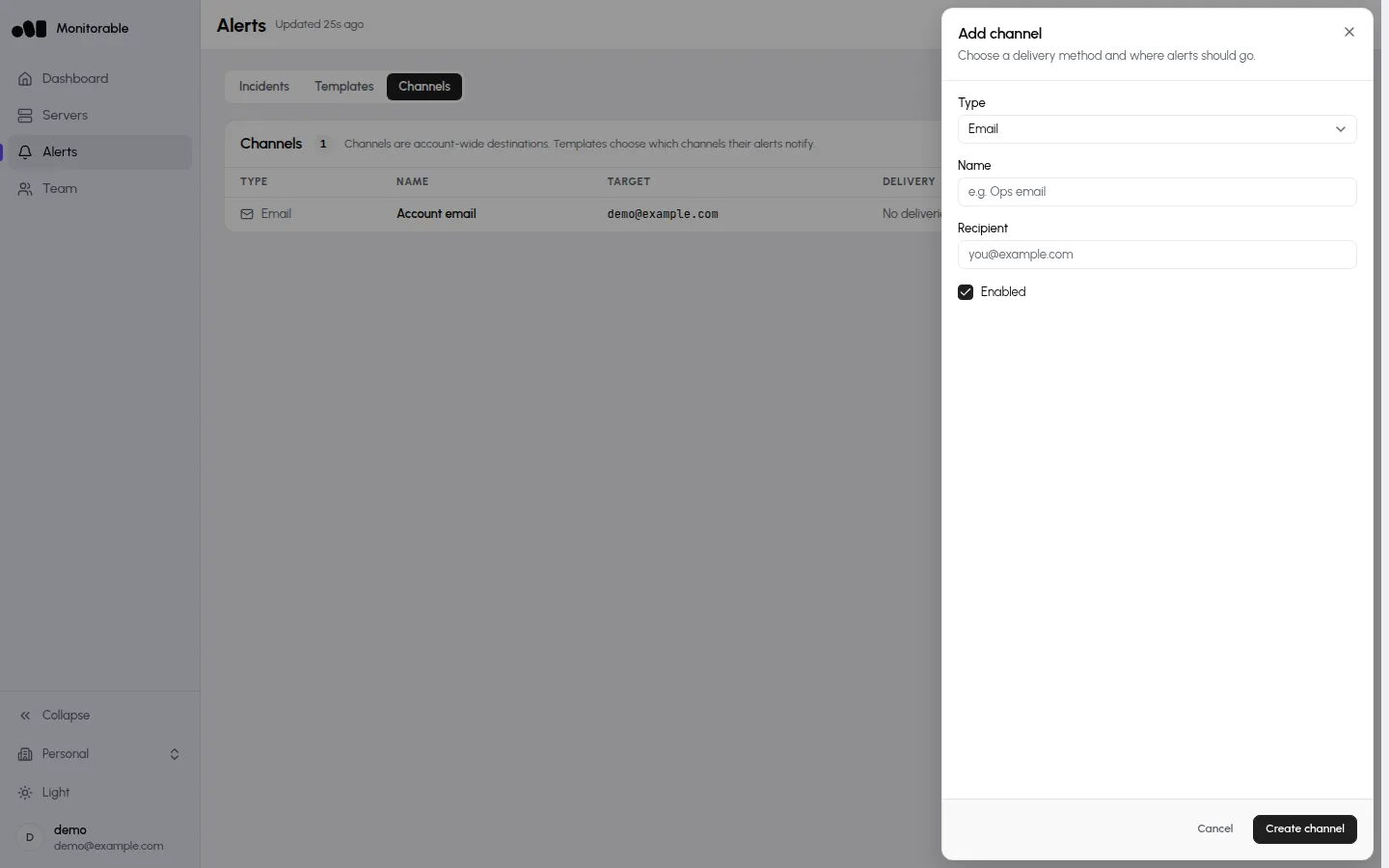
Click **Add channel**, pick a **Type**, and fill in the destination. Each channel has a **Name**, an **Enabled** switch, and one or two type-specific fields:
| Type | Fields |
| --------- | ---------------------------------------------------------------------------------------------------------------------------------------- |
| Email | **Recipient** — an email address |
| Telegram | **Bot token** and **Chat ID** |
| Discord | **Webhook URL** (`https://discord.com/api/webhooks/…`) |
| Slack | **Webhook URL** (`https://hooks.slack.com/services/…`) |
| PagerDuty | **Routing key** (Events API v2) |
| Webhook | **URL** — receives a JSON payload per notification |
| ntfy | **Topic**, plus an optional **Server** (defaults to `ntfy.sh`; https unless you write `http://`; a `user:password@` and a path are kept) |
Webhook messages carry an `[ALERT]`, `[REMINDER]`, `[ESCALATION]`, `[RESOLVED]`, or `[TEST]` title prefix with the server name, the incident description, and a link back to the dashboard — enough to route on in most automation tools.
## Send a test
[Section titled “Send a test”](#send-a-test)
Every channel row has a test button (“Send test notification to …”). It delivers “This is a test notification from Monitorable.” from a server named “Sample Server”, so you can confirm the destination works before an incident does it for real. Test sends don’t count against the daily caps.
Alerts only go to public addresses, and redirects are not followed. If a webhook or ntfy destination resolves to a private or reserved address, or answers with a redirect, the test fails with a message that says so: use a public URL, or the final URL after the redirect.
## Escalation
[Section titled “Escalation”](#escalation)
A template can escalate an alert nobody has acknowledged. In the template editor, the **Escalation** card sits between **Notifications** and **Notification channels**. Switch on **Escalate if not acknowledged**, pick a delay (15m, 30m, 1h, 2h, 4h, 12h, or 24h — 30m when you switch it on), and tick the channels the escalation should go to.
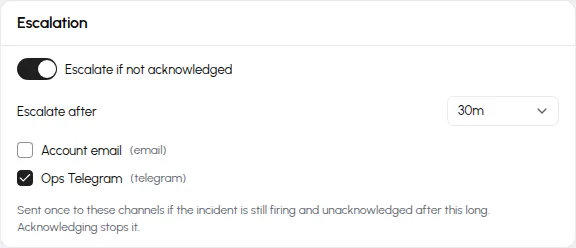
* There is one step. If the incident is still open and unacknowledged that long after the alert fired, it is sent once more to the escalation channels, titled “\[ESCALATION]” followed by the server name in chat channels. Nothing further follows.
* Acknowledging the incident before the delay is up cancels the escalation. Acknowledging it afterwards doesn’t send anything.
* When the incident resolves, the resolve notice goes to the rule’s channels and to the escalation channels.
* The incident’s timeline shows an **Escalation** row per channel and an “Escalated” event. The **Incidents** list and the Alerts badge don’t change.
* Switching escalation off keeps the channels you picked, ready for next time. Saving with it on and no channel ticked is refused: “pick at least one escalation channel”.
* While a server is muted nothing is sent, escalations included. The mute doesn’t pause the escalation clock, so an alert held by a mute can escalate soon after it goes out once the mute ends.
Escalations count toward the daily caps below like any other send.
## Daily caps
[Section titled “Daily caps”](#daily-caps)
To keep a runaway alert storm from flooding a destination, sends are capped per day (UTC): **50 for email** and **200 for each other channel type**, counted per type across your account — two email channels share one 50-send budget. The first send past the cap delivers a one-time notice — “Daily notification cap reached for this channel; further alerts today are suppressed.” — and further notifications that day are dropped. Resolve notifications, reminders, and escalations count like any other send; test sends don’t.
# How alerting works
> Templates bundle rules, channels, and reminder policy; incidents fire and resolve per server, with reminders until acknowledged.
Alerting is on from your first server: the account gets a **Default** template and an **Account email** channel automatically, so a server going offline already sends you an email. Everything lives under **Alerts** in the dashboard, split into **Incidents**, **Templates**, and **Channels**.
## Templates bundle rules
[Section titled “Templates bundle rules”](#templates-bundle-rules)
As the Templates page puts it: “A template bundles alert rules, channels, and reminder policy. Each server follows one template (the account default unless assigned another).”
The **Default** template can’t be deleted, but you can edit it, duplicate it, or create more with **New template** and assign them per server. Its rule table has a row per rule type — 12 of 20 enabled out of the box:
| Rule | Threshold | Window | Notifications |
| ----------------------- | ---------- | ------ | ------------- |
| Agent offline | — | 5m | 1 |
| CPU usage | 80% | 1h | 3 |
| RAM usage | 80% | 1h | 3 |
| Disk usage | 85% | 1h | 3 |
| SMART health failed | — | — | 3 |
| Disk wearout | 90% | — | 3 |
| New disk errors | — | — | 3 |
| New reallocated sectors | — | — | 3 |
| Systemd unit failed | — | — | 3 |
| Systemd restart loop | 3 restarts | 30m | 3 |
| Container down | — | — | 3 |
| Container unhealthy | — | — | 3 |
Eight more can be switched on per template: load averages (1m/5m/15m), CPU temperature, swap usage, network inbound/outbound rates, and [Listening port disappeared](/docs/metrics/listening-ports/#get-told-when-a-port-disappears). Thresholds, windows, and per-rule notification counts are all editable in the template editor.
## How incidents fire and resolve
[Section titled “How incidents fire and resolve”](#how-incidents-fire-and-resolve)
Rules are evaluated server-side every minute; an incident is created per server and rule.
* **Threshold rules** (CPU, RAM, disk usage, …) need two consecutive breaching evaluations to fire and three clean ones to resolve, so a single spike doesn’t page you. Clean means the value has stayed below 90 % of the threshold, so a value hovering just under the line does not flap between firing and resolved.
* **State rules** (**Agent offline**, **SMART health failed**, **Container down**, …) fire on the first breaching observation and resolve on the first healthy one. **Agent offline** fires when the server hasn’t checked in for the rule’s window — 5 minutes by default, which is also the minimum. Time during which Monitorable itself was not receiving data does not count toward that window, and the incident’s timeline says so.
* A resolved notice is sent once the alert has stayed clear for 15 minutes. If the condition returns inside those 15 minutes, it is the same incident: you get no second “firing” notice and no “resolved” notice, and your acknowledgment is kept. A condition that returns after the resolved notice has gone out starts a new incident, with its own notice. Either way, a flap inside the 15 minutes stays one line in your history.
## Notifications, reminders, acknowledgment
[Section titled “Notifications, reminders, acknowledgment”](#notifications-reminders-acknowledgment)
When an incident fires, the template’s channels get a notification. The template editor states the reminder policy exactly:
> Reminders repeat at this interval until a rule’s Notifications count is used up (the count includes the initial alert). Acknowledging an incident stops its reminders.
* **Remind every** is per template (default **6h**, minimum 30 minutes).
* The **Notifications** count is per rule, 1–5 total including the initial alert. **Agent offline** defaults to 1 — a server going offline notifies once per occurrence, not every 6 hours.
* While a server’s agent is offline, reminders for that server’s other alerts wait for the agent to return, then resume. The agent-offline alert itself still reminds.
* **Notify when incidents resolve** (on by default) sends a RESOLVED notification when the incident resolves — including for incidents you acknowledged.
A rule can send to its own channels instead of the template’s, and a template can escalate an unacknowledged alert once to a second set of channels; see [Channels per rule](/docs/alerting/rules/#channels-per-rule) and [Escalation](/docs/alerting/notification-channels/#escalation).
Acknowledge from the **Incidents** page. It can’t be undone. It silences reminders and clears the incident from the **Alerts** count in the sidebar, which only counts incidents nobody has acknowledged — but the incident itself stays open, and listed, until the condition is actually gone.
## Per-server: assignment and mute
[Section titled “Per-server: assignment and mute”](#per-server-assignment-and-mute)
Each server’s page has an **Alerts on this server** card listing its open incidents, with two controls: **Template** (which template this server follows — “Account default” unless you pick another) and **Mute alerts**. Muting pauses notifications for a duration you choose — 1 hour, 4 hours, 24 hours, or 7 days — or until you unmute, with an optional reason. The reason is shown in the card while the mute lasts.
Evaluation and the incident list carry on while a server is muted. Its incidents stay in the list, marked “muted”, but drop out of the attention tier, the **Alerts** count in the sidebar, and the status favicon.
* Incidents that start during the mute are announced once when it ends.
* A recovery during the mute resolves quietly, with no notice.
* While muted, you can change the duration (the current end is kept by default) or unmute.
## The Incidents page
[Section titled “The Incidents page”](#the-incidents-page)
**Alerts → Incidents** lists incidents with an **All** / **Firing** / **Acked** / **Resolved** filter. Each row shows the alert (rule and, where it applies, the unit or container), the server, when it started, how long it has been open, its status, and an **Ack** (acknowledge) action.
The page shows every open incident plus everything from the last 7 days. Resolved incidents are kept for 90 days, then removed automatically.
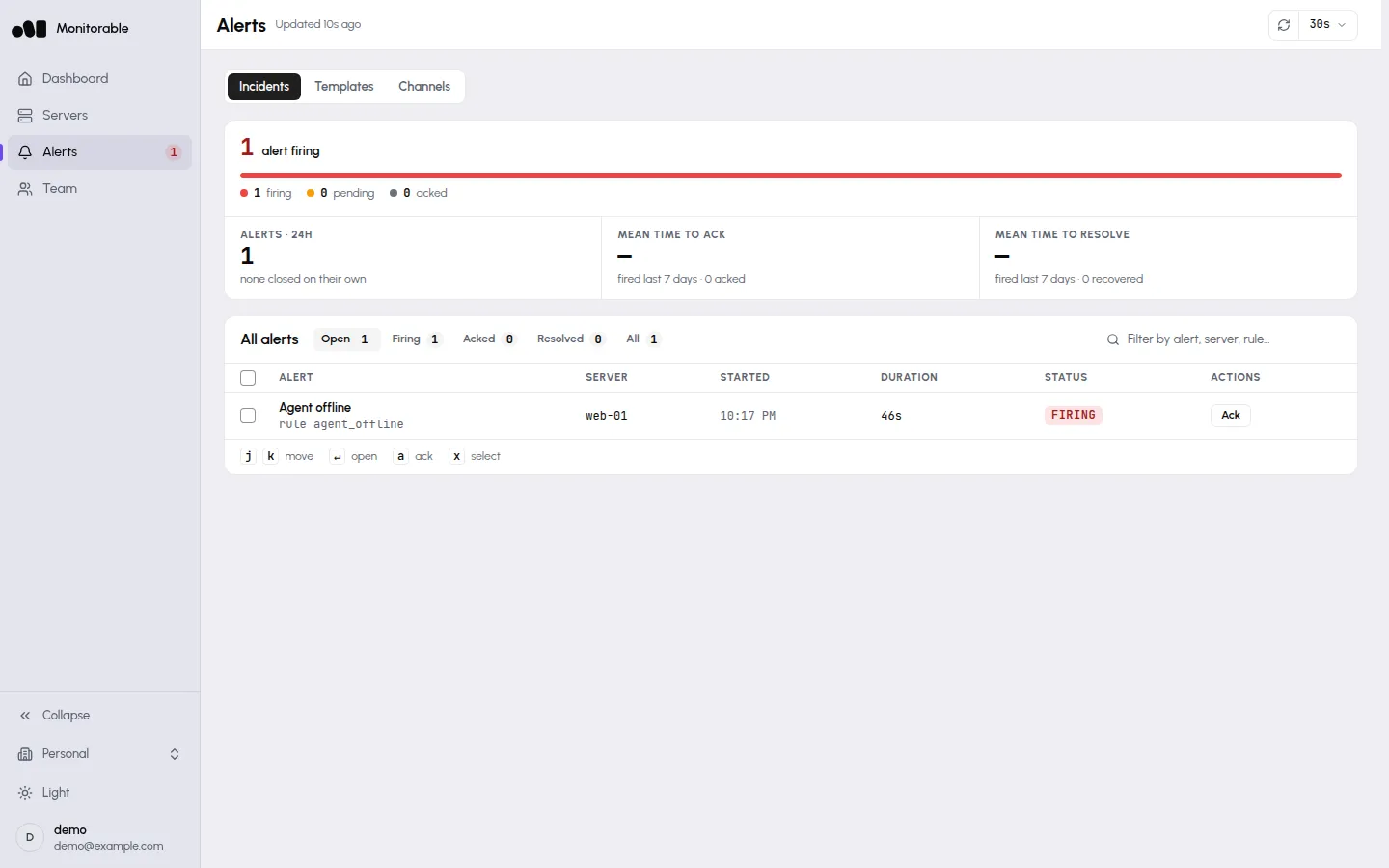
Notification delivery is a separate topic — where alerts go, testing a channel, and daily caps are covered in [Notification channels](/docs/alerting/notification-channels/).
# Which alert rules exist and what they fire on
> All 20 rule types with defaults and limits: threshold rules average over a window, state rules fire while a condition holds, event rules fire once each.
Every server you monitor can alert on CPU, memory, disk usage, load, temperature, network rates, a silent agent, a failing drive, a failed systemd unit, a dead container, or a port that stopped listening — the same 20 rules on every alert template, each with a notification count, and a threshold or window where it has one, that you can change. Every rule is listed below with its default and its limits, and exactly when it fires. How templates, channels, reminders, and acknowledgment fit together is covered in [How alerting works](/docs/alerting/overview/).
## Set up one alert
[Section titled “Set up one alert”](#set-up-one-alert)
Every rule is changed in the same place, so the metric pages link here:
1. Open **Alerts** in the dashboard, then the **Templates** tab, and click the template your server follows (**Default** unless you assigned another).
2. Find the rule’s row under **Rules** and tick its checkbox to enable it; the group header counts how many in the group are on.
3. Type the **Threshold** in the rule’s unit and pick a **Window** from the dropdown (**1m** to **24h**). Rules without a threshold or window show a dash.
4. Set **Notifications**, the number of messages the incident may send including the first (**1** to **5**).
5. Leave **Channels** on **Template channels**, or click the cell and tick the channels this one rule should notify instead.
6. Click **Save changes**. The rule applies to every server on the template from its next evaluation; rules are evaluated every 60 seconds.
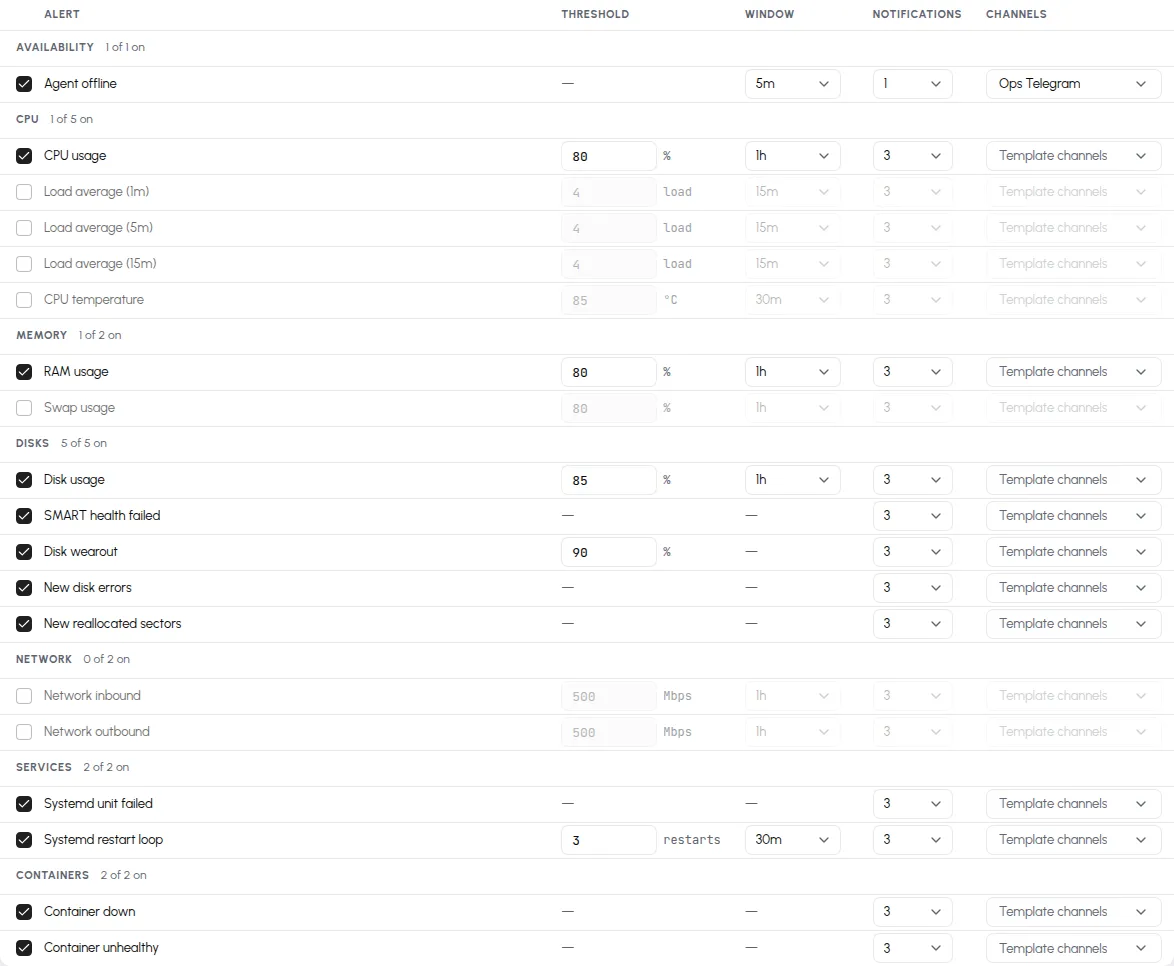
All rules are evaluated every 60 seconds, but they don’t all decide the same way. There are three kinds:
* **Threshold rules** compare the metric’s *average over the rule’s window* against the threshold. To fire, the comparison must fail on 2 consecutive checks; to resolve, it must pass on 3 consecutive ones — so a single noisy sample neither fires nor resolves anything. Passing here means the value is below 90 % of the threshold, so a value hovering just under the line does not flap. For disk, a cleanup that lands at 80 % against an 85 % threshold stays firing until usage drops below 76.5 % (90 % of 85).
* **State rules** watch a condition that is simply true or false — a failed drive, a failed unit, a silent agent. They fire as soon as the condition holds (after the rule’s window, where it has one) and resolve on the first check that doesn’t see it.
* **Event rules** fire once per occurrence and land in the incident history already resolved — there is no ongoing state to watch, so there’s nothing to resolve later. Each new occurrence is its own incident.
## Threshold rules
[Section titled “Threshold rules”](#threshold-rules)
“Default” reads threshold / window. The window average is what’s tested: **CPU usage** at 80% / 1h fires when the *hour-long average* crosses 80%, not when one sample spikes.
| Rule | Default | Threshold limits | Enabled by default |
| ------------------ | ------------- | ---------------- | ------------------ |
| CPU usage | 80% / 1h | 1–100% | yes |
| Load average (1m) | 4 / 15m | 0.1–1024 | no |
| Load average (5m) | 4 / 15m | 0.1–1024 | no |
| Load average (15m) | 4 / 15m | 0.1–1024 | no |
| CPU temperature | 85 °C / 30m | 30–120 °C | no |
| RAM usage | 80% / 1h | 1–100% | yes |
| Swap usage | 80% / 1h | 1–100% | no |
| Disk usage | 85% / 1h | 1–100% | yes |
| Network inbound | 500 Mbps / 1h | 1–100,000 | no |
| Network outbound | 500 Mbps / 1h | 1–100,000 | no |
**Disk usage** is evaluated per filesystem: each mount gets its own incident, so a full `/var` and a full `/home` are two separate alerts.
## State rules
[Section titled “State rules”](#state-rules)
| Rule | Fires while | Enabled by default |
| -------------------------- | -------------------------------------------------------------------------------------------------------- | ------------------ |
| Agent offline | The server’s last report is older than the rule’s window (default 5m). | yes |
| SMART health failed | A drive’s overall SMART self-assessment reports failure. | yes |
| Disk wearout | A drive’s [wearout](/docs/metrics/disk-health-smart/) has reached the threshold (default 90%). | yes |
| Systemd unit failed | A `.service` unit is in the failed state. | yes |
| Container down | A container stopped without a clean exit. | yes |
| Container unhealthy | A container’s own healthcheck reports unhealthy. | yes |
| Listening port disappeared | A port that had been listening for at least 10 minutes has been gone for the rule’s window (default 5m). | no |
Notes with edges:
* **Agent offline** accepts windows of 5 minutes and up — shorter values are rejected on save. It defaults to a single notification: a server that goes offline tells you once, not five times. It’s also the one alert that fires when the server *can’t* report — every other rule needs data to arrive.
* **Container down** doesn’t fire on clean stops: exit code 0, or 143 (a `docker stop` honored with a graceful shutdown), is treated as intentional. Containers running for less than 2 minutes get a grace period, so restarts and fresh deploys don’t fire it.
* **Listening port disappeared** is off until you enable it, and its window stops at 6 hours (**1m** to **6h**). It ignores ports that listened for less than 10 minutes and doesn’t count minutes the agent wasn’t reporting. If the port stays missing for 24 hours its incident closes as **Retired**, with no resolve notice. The [Ports panel page](/docs/metrics/listening-ports/#get-told-when-a-port-disappears) has the full behavior.
* Per-entity rules (drives, units, containers, mounts, ports) open one incident per entity, named after it — the incident for a failed `redis.service` says so.
## Event rules
[Section titled “Event rules”](#event-rules)
| Rule | Fires when | Enabled by default |
| ----------------------- | ----------------------------------------------------------------------------------------------------------- | ------------------ |
| New disk errors | A drive’s error counters increase compared to the last check. | yes |
| New reallocated sectors | A SATA drive’s reallocated-sector count increases compared to the last check. NVMe drives don’t report one. | yes |
| Systemd restart loop | A unit restarts 3 times (default, 1–50) within the window (default 30m). | yes |
An event rule notifies once per occurrence. In the Incidents list its incidents appear directly under **Resolved** — that’s by design, not a missed fire.
## Windows and notifications
[Section titled “Windows and notifications”](#windows-and-notifications)
* Every window dropdown offers the same steps: **1m, 5m, 10m, 15m, 30m, 1h, 2h, 6h, 12h, 24h**. The one exception is **Listening port disappeared**, which stops at **6h**.
* **Notifications** is the total number of messages an incident may send while firing, including the first — **1 to 5** (default 3). Reminder spacing comes from the template; see [How alerting works](/docs/alerting/overview/#notifications-reminders-acknowledgment).
## Channels per rule
[Section titled “Channels per rule”](#channels-per-rule)
The **Channels** column is the last one in the rules table. A rule reads **Template channels** by default: it notifies the template’s **Notification channels** list. To send one rule somewhere else, click its Channels cell and tick the channels you want.
* A rule with its own channels sends its alert, its reminders, and its resolve notice to those channels only. Every other rule keeps using the template’s list.
* Click **Use template channels** in the same picker to reset the rule to the template’s list.
* Deleting a channel removes it from every rule that named it. A rule whose last channel was deleted goes back to the template’s channels.
* If every channel a rule names is disabled, nothing is sent, and the incident’s timeline says “Not sent: no enabled channels”.
The choice is saved with the template, like the other columns. Channels are created under **Alerts → Channels**; see [Notification channels](/docs/alerting/notification-channels/).
## Resolving, reopening, and removed entities
[Section titled “Resolving, reopening, and removed entities”](#resolving-reopening-and-removed-entities)
* Resolve notices arrive once the alert has stayed clear for **15 minutes**. If the condition returns inside those 15 minutes, it continues the same incident: no second “firing” notice, no “resolved” notice, and the acknowledgment is kept. A condition that returns after the notice has gone out starts a new incident with its own notice and a fresh acknowledgment.
* When a watched entity disappears — a container removed, a transient unit cleaned up with `systemctl reset-failed`, a drive pulled — its open incident resolves on its own, silently.
* One honest edge: that auto-resolve needs a report proving the entity is gone. If the agent itself stops reporting, or the *last* entity of that kind vanishes (say, the only alerting mount is unmounted), there is no such report — the incident stays firing until its notification count is spent. Remove the incident’s cause, or acknowledge it, rather than waiting it out.
* Muting a server pauses its notifications, not evaluation: incidents keep opening and resolving, and anything that started during the mute is announced once when it ends. The mute switch is described in [How alerting works](/docs/alerting/overview/#per-server-assignment-and-mute).
# FAQ
> Short answers — the agent is Linux-only and OpenTelemetry-native, costs under 1% of a core, and shows metrics about a minute after install.
Short answers first, with the page that has the full story linked from each.
## What can Monitorable monitor?
[Section titled “What can Monitorable monitor?”](#what-can-monitorable-monitor)
Linux servers — bare metal, VMs, and LXC containers, on x86\_64 (amd64) or arm64. One agent per server reports [host metrics](/docs/metrics/host-metrics/), [Docker containers](/docs/metrics/docker-containers/), [systemd services](/docs/metrics/systemd-services/), [listening ports and connection counts](/docs/metrics/listening-ports/), and — on bare metal — [SMART disk health](/docs/metrics/disk-health-smart/).
## Does it work on Windows or macOS?
[Section titled “Does it work on Windows or macOS?”](#does-it-work-on-windows-or-macos)
No. The agent is Linux-only — [Requirements & permissions](/docs/agent/requirements-permissions/) lists what the server needs.
## Is it really OpenTelemetry?
[Section titled “Is it really OpenTelemetry?”](#is-it-really-opentelemetry)
Yes. The agent is a custom distribution of the OpenTelemetry Collector, and metrics leave your server as standard OTLP over HTTPS. [What the agent collects](/docs/agent/what-is-collected/) lists every field on the wire.
## How much load does the agent add?
[Section titled “How much load does the agent add?”](#how-much-load-does-the-agent-add)
The binary is about 47 MB on disk; running, it holds 12–16 MB of memory and has averaged under 0.1% of one CPU core on the server these docs are verified against — measured numbers, not targets, in [Requirements & permissions](/docs/agent/requirements-permissions/#what-the-server-needs).
## How quickly do metrics appear?
[Section titled “How quickly do metrics appear?”](#how-quickly-do-metrics-appear)
The first batch arrives about 60 seconds after the agent service starts. Panels fill as their data comes in: containers within a minute, services within about 5 minutes, disk health within a few minutes on bare metal. The [Quick start](/docs/getting-started/) walks the whole first run.
## Does Monitorable ping my servers from the outside?
[Section titled “Does Monitorable ping my servers from the outside?”](#does-monitorable-ping-my-servers-from-the-outside)
No. All monitoring comes from the agent’s outbound reports — there are no external probes, and nothing connects *to* your server. “Offline” means the agent stopped reporting, which is what the **Agent offline** [alert rule](/docs/alerting/rules/#state-rules) fires on.
## How long is my data kept?
[Section titled “How long is my data kept?”](#how-long-is-my-data-kept)
Per-minute detail for 35 days, hourly history for 400 days — [Metrics history & resolution](/docs/account/metrics-history/) covers the switchover and what deletes data.
## What does it cost?
[Section titled “What does it cost?”](#what-does-it-cost)
Monitorable is free for 3 servers — 15 days of history and alerting to email, Telegram, and Discord, with no card required. Paid plans are a flat monthly price by tier: **Pro** $9/month (10 servers), **Scale** $29/month (40 servers), and **Enterprise** $79/month (150 servers), each adding history, alert channels, templates, and team seats. Every paid plan starts with a 14-day free trial, and annual billing is two months free. The [pricing section](/#pricing) has the full breakdown. Running more than 150 servers? Email .
## Are there limits on servers or alerts?
[Section titled “Are there limits on servers or alerts?”](#are-there-limits-on-servers-or-alerts)
Yes — each plan sets them. Servers run from 3 on the free plan to 150 on Enterprise; alert channels from 3 to unlimited; alert templates from 3 to unlimited; team members from 1 to 25. The plan also sets how far back the dashboard can query — from 15 days to a year — which is a query window, not when data is deleted (see [How long is my data kept?](#how-long-is-my-data-kept) above). The [pricing section](/#pricing) lists every tier, and the per-channel notification caps are on [Notification channels](/docs/alerting/notification-channels/).
## Can I pause instead of cancelling?
[Section titled “Can I pause instead of cancelling?”](#can-i-pause-instead-of-cancelling)
Yes. Pausing stops billing at the end of your current period and keeps your servers, history and alert setup. Your account runs at the free plan’s limits until you resume — servers over the free limit stop ingesting while paused, and everything picks up again when you resume. When you resume, your plan comes back right away and billing picks up again from your next renewal.
## Is there a public API?
[Section titled “Is there a public API?”](#is-there-a-public-api)
Not yet. The dashboard is the only interface today; an API is on the roadmap but unscheduled.
# Quick start
> Sign in, add a server, run one install command as root, and watch live metrics arrive about a minute later.
Go from an empty account to live server metrics in about five minutes: add a server in the dashboard, run one command on it, and the first metrics arrive about a minute later.
You need:
* A Linux server (x86\_64 or arm64) you can access as root. The agent is Linux-only.
* Outbound HTTPS from that server. The agent pushes metrics out; no inbound ports are opened.
## Sign in
[Section titled “Sign in”](#sign-in)
Open [app.monitorable.io](https://app.monitorable.io) and continue with Google, GitHub, or your email address. There is no password: with email, Monitorable sends you a message containing a sign-in link and a 6-digit code — click the link, or enter the code and click **Verify Code**. The link and code expire after 15 minutes.
Signing in for the first time creates your account.
## Add your first server
[Section titled “Add your first server”](#add-your-first-server)
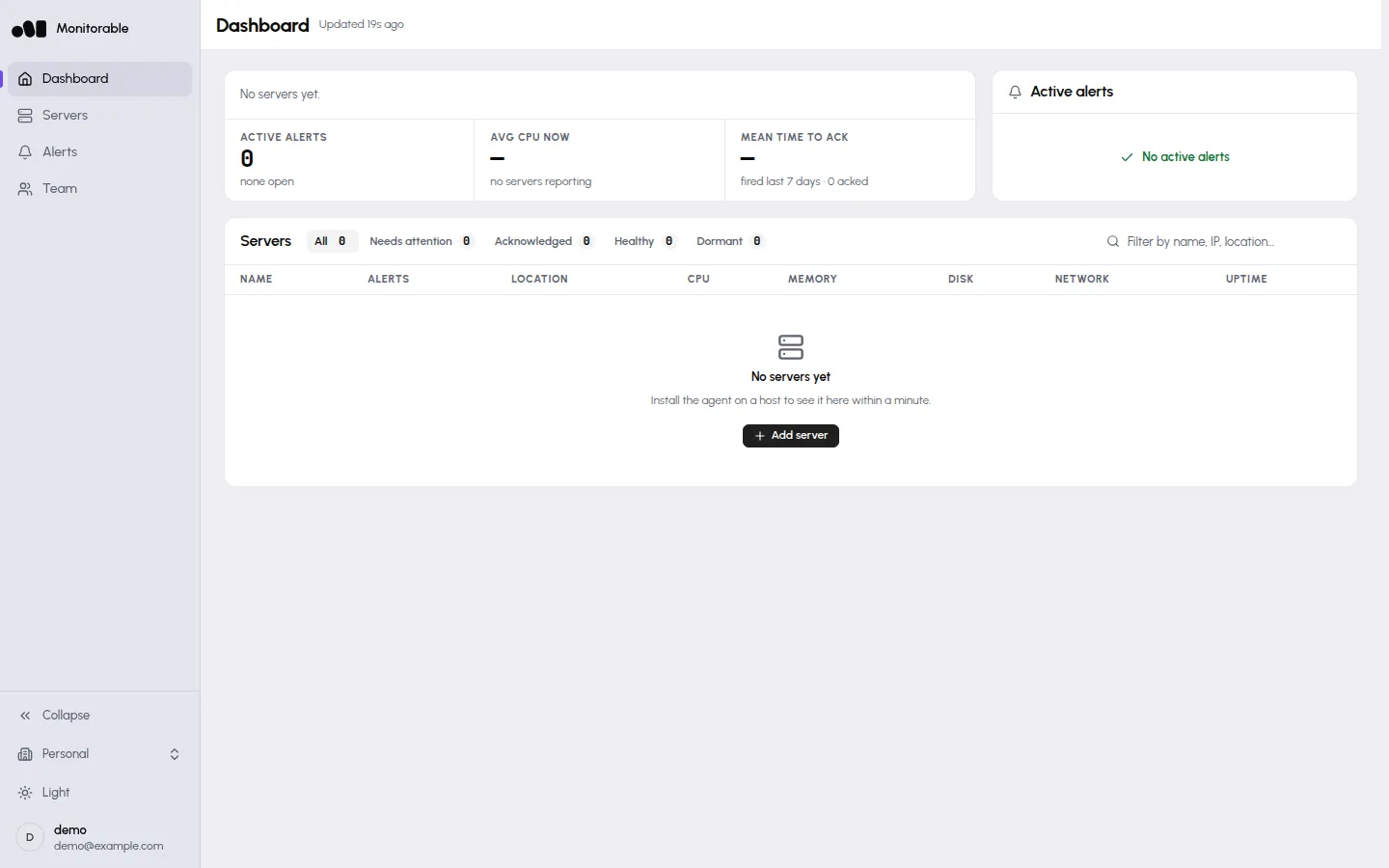
1. Open the **Servers** page and click **Add server**. (The empty dashboard offers the same **Add server** button.)
2. Enter a name — this is only the label the dashboard shows, so it doesn’t need to match the server’s hostname — and click **Add Server**.
3. The **Install the agent** dialog appears with a one-line install command. It embeds this server’s API key and is shown only once, so copy it before closing the dialog.

If you close the dialog without copying, remove the server (**Remove** in the row’s **Server actions** menu on the Servers page) and add it again to get a fresh command.
## Run the install command
[Section titled “Run the install command”](#run-the-install-command)
Paste the copied command into a root shell on the server you want to monitor. It has this shape:
```bash
curl --proto '=https' --tlsv1.2 -fsSL https://get.monitorable.net/install.sh | sudo sh -s -- --endpoint=https://ingest.monitorable.net --api-key=
```
The install script creates an unprivileged `monitorable` system user, downloads the agent binary and its configuration (verifying the signed release checksums), writes a root-only env file with your API key and endpoint, and starts the agent as the systemd service `monitorable-agent.service`:
```text
🚀 Monitorable agent installer
================================
Endpoint: https://ingest.monitorable.net
Version: latest
Detected platform: linux/amd64
Agent URL: https://get.monitorable.io/binaries/otel/latest/monitorable-agent-linux-amd64
📁 Creating directories...
🔒 Setting up permissions...
📦 Downloading the Monitorable agent...
✅ Binary, config and unit template verified against SHA256SUMS
monitorable-agent-linux-amd64 v1.4.2 sha256 c1f43fbadc81e4fe67acaf4f8ad113a615d9de692a0be7812b6e24e604cf548e
👤 Creating user and group...
Creating group: monitorable
Creating user: monitorable
💽 No physical disk detected — SMART disabled (no extra privileges)
✅ Monitorable agent installed
✅ Configuration file installed
🔑 Writing agent.env...
🔧 Setting up systemd service...
▶️ Starting service...
✅ Service started successfully!
🎉 Installation complete!
```
After the summary, the script prints the service status and the commands for viewing logs (`journalctl -u monitorable-agent -f`) and restarting the service (`systemctl restart monitorable-agent`).
## Watch the first metrics arrive
[Section titled “Watch the first metrics arrive”](#watch-the-first-metrics-arrive)
Back in the dashboard, open your server’s page. About 60 seconds after the install script finishes, the server’s status flips to **Healthy** and the CPU, memory, and load panels draw their first points. Charts fill out as data accumulates — give it a few minutes.
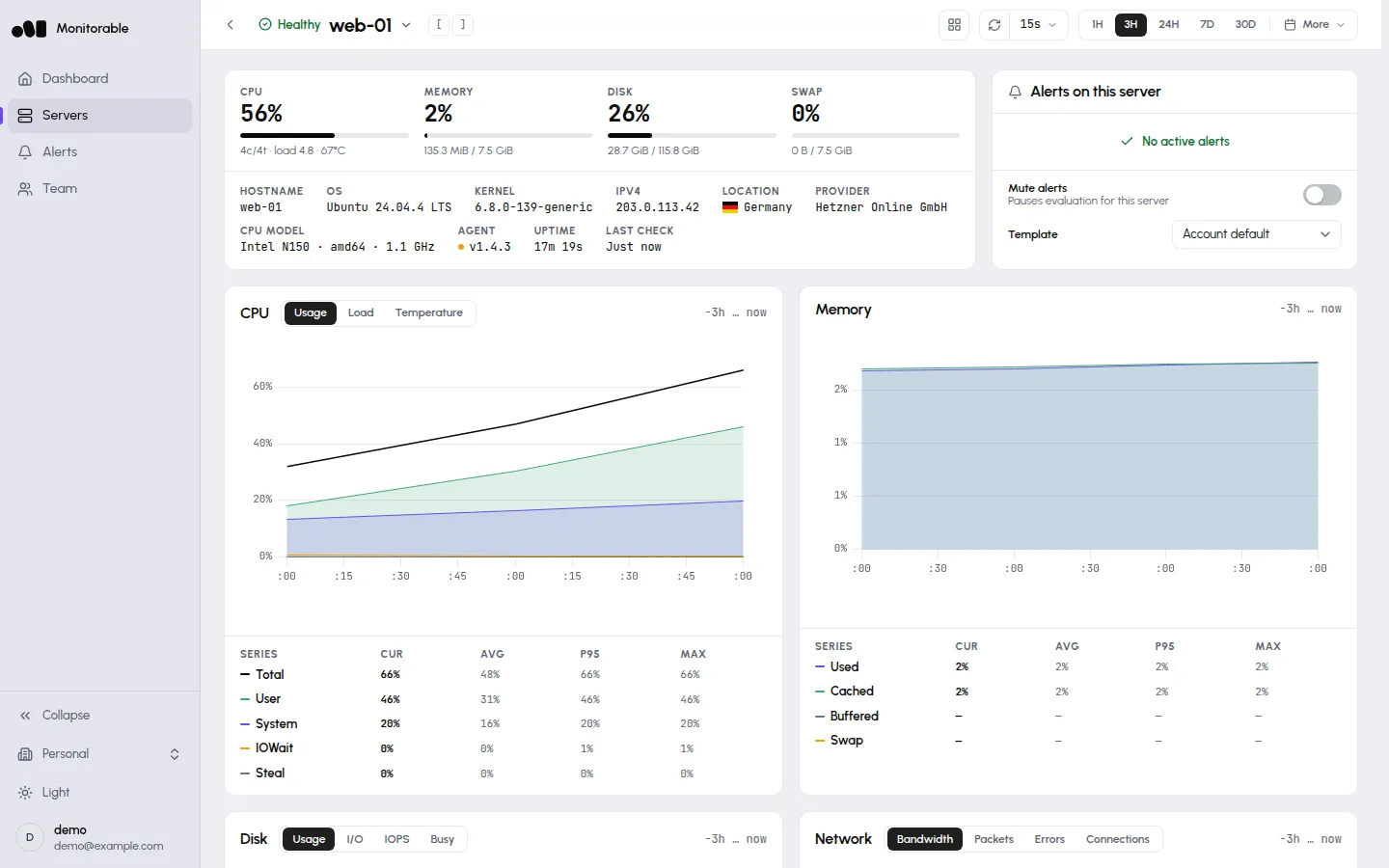
Two panels depend on what the agent finds: Docker containers appear only when Docker is installed, and SMART disk health only on bare-metal servers — virtual machines don’t expose physical drives.
## Alerts are already on
[Section titled “Alerts are already on”](#alerts-are-already-on)
Adding your first server also sets up alerting: your account gets a **Default** alert template (12 of 20 rule types enabled) and an **Account email** notification channel that points at your sign-in address. When a rule fires, the incident appears under **Alerts** and you get an email — there is nothing to configure for that. [How alerting works](/docs/alerting/overview/) covers templates, reminders, and acknowledgment.
To route alerts elsewhere (Telegram, Discord, Slack, PagerDuty, webhook, or ntfy), go to **Alerts → Channels** and click **Add channel** — see [Notification channels](/docs/alerting/notification-channels/).
## If no metrics appear
[Section titled “If no metrics appear”](#if-no-metrics-appear)
Check the service on the server:
```bash
systemctl status monitorable-agent
```
If it shows `active (running)`, watch the logs for delivery errors and confirm the server can reach `https://ingest.monitorable.net` over HTTPS:
```bash
journalctl -u monitorable-agent -f
```
[No data appearing](/docs/troubleshooting/no-data/) walks the full checklist, including what the delivery-error log lines mean.
# Know when a disk is about to fail (SMART)
> SMART pass/fail, reallocated sectors, errors and wearout per drive on bare-metal servers, each with an alert rule that fires on it; VMs expose no SMART.
Get told before a drive fails, from the drive’s own SMART data, without setting up `smartd` and a mail path on every server: the agent reads each physical drive’s health, and four alert rules fire on a failed self-assessment, new errors, new reallocated sectors, and wearout.
The **SMART** tab on a server’s **Disk** panel appears on bare-metal servers only. SMART data comes from the physical drive itself, and virtualized disks — virtio, Xen, Hyper-V, and anything inside a VM, LXC, or other container — don’t pass it through. If your server is a VPS and its Disk panel has no SMART tab, nothing is wrong: there is no drive health to read, and the tab stays away rather than showing an empty table.
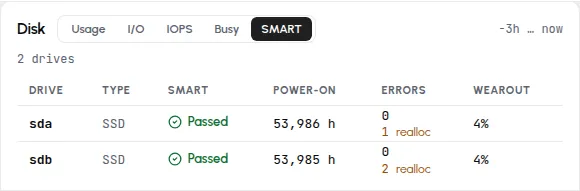
On bare metal, the tab lists every physical NVMe and SATA drive with its SMART verdict:
## The table, drive by drive
[Section titled “The table, drive by drive”](#the-table-drive-by-drive)
| Column | Meaning |
| ------------ | -------------------------------------------------------------------------------------------------------------------------------------------------------------------------------------------------------------------------------------------------------------------------------------------------------------------------------------------------------------------------------------------------------------------------------------------------------- |
| **Drive** | Kernel device name (`sda`, `nvme0n1`). |
| **Type** | NVMe, SSD, or HDD. |
| **SMART** | The drive’s overall SMART self-assessment. **Passed** is healthy; a failing drive is what the **SMART health failed** [alert rule](/docs/alerting/overview/) fires on. |
| **Power-on** | Lifetime hours the drive has been powered (`13,305 h`), from the drive’s own counter. |
| **Errors** | Entries in the drive’s SMART error log (SATA), or media and data-integrity errors (NVMe). When a SATA drive has **reallocated sectors** — bad sectors it has swapped for spares — their count shows under it in amber, such as `24 realloc`. A few is common on an older drive; a count that keeps climbing is an early sign of a failing drive, which is what the **New reallocated sectors** [alert rule](/docs/alerting/rules/#event-rules) fires on. |
| **Wearout** | How much of the drive’s rated endurance is used — 0% is a new drive, and higher is more worn. Reported for SSDs and NVMe drives; spinning disks don’t expose an endurance figure. |
Click a drive for the full picture — model, capacity, temperature, and the serial number, which is how you match a `sda` in the dashboard to the physical drive in your hands:
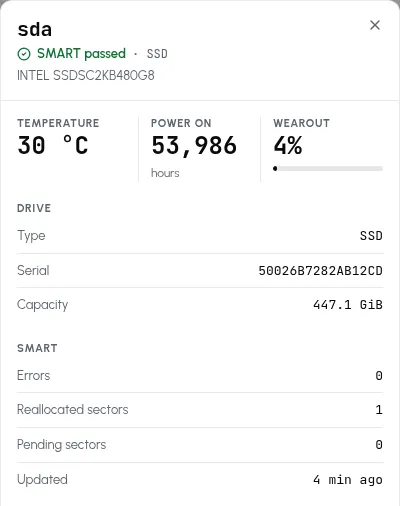
The serial number is the one hardware identifier the agent reports — [What the agent collects](/docs/agent/what-is-collected/#smart-disk-health-every-15-minutes) lists every SMART field that leaves the server.
## Alert when a drive starts failing
[Section titled “Alert when a drive starts failing”](#alert-when-a-drive-starts-failing)
The table above is also what the alert rules read. Each of these four is on by default and opens one incident per drive, named after it:
* **SMART health failed** fires while a drive’s overall self-assessment reports failure, and resolves on the first snapshot that reads **Passed** again.
* **Disk wearout** fires while a drive’s wearout has reached 90% (the default threshold).
* **New disk errors** fires once each time a drive’s error counters increase compared to the last check.
* **New reallocated sectors** fires once each time a SATA drive’s reallocated-sector count increases; NVMe drives don’t report one.
The two “new” rules are event rules: one notification per occurrence, and the incident lands in the history already resolved. Lower the wearout threshold or send drive alerts to a channel of their own in the template, following [Set up one alert](/docs/alerting/rules/#set-up-one-alert).
## When the data arrives
[Section titled “When the data arrives”](#when-the-data-arrives)
The agent takes its first SMART snapshot when its service starts, so the tab shows up within a couple of minutes of installing on a bare-metal server. After that it refreshes every 15 minutes — drive health doesn’t move fast, and each read wakes the drives up.
## The privileges behind it
[Section titled “The privileges behind it”](#the-privileges-behind-it)
Reading SMART needs low-level device access the agent otherwise doesn’t have, so the install script probes `/sys/block` and grants only what your hardware calls for. On a server with SATA drives, the install prints:
```text
💽 SATA/SAS detected — enabling SMART (CAP_SYS_RAWIO)
```
NVMe gets a slightly broader grant, and a server with no physical drives gets nothing at all — [Requirements & permissions](/docs/agent/requirements-permissions/#disk-smart-capabilities-are-probed-not-blanket) has the exact table. If you add a physical drive to a server later, [re-run the install command](/docs/agent/install/#re-run-the-same-command-to-upgrade): it re-probes the hardware and extends the grant, and the new drive joins the table on the next SMART cycle.
## Doing this with smartd
[Section titled “Doing this with smartd”](#doing-this-with-smartd)
If you’d rather not run an agent, `smartmontools` ships `smartd`, which polls every drive on the server and mails you when a health check fails or a new error appears. Replace the `DEVICESCAN` line in `/etc/smartd.conf` (Debian and Ubuntu ship one, and smartd ignores everything after the first) with one that watches every drive it finds, then restart the daemon:
```text
DEVICESCAN -a -m you@example.com
```
`-a` turns on the health check, attribute tracking, the error-log and self-test-log counts, and the pending and offline-uncorrectable sector checks; `-m` is where warnings go. A one-off foreground run shows what the daemon would pick up — two drives here, one SATA and one NVMe:
```bash
smartd -d -q onecheck -c /etc/smartd.conf
```
```text
Opened configuration file /etc/smartd.conf
Configuration file /etc/smartd.conf was parsed, found DEVICESCAN, scanning devices
Device: /dev/sda, type changed from 'scsi' to 'sat'
Device: /dev/sda [SAT], opened
Device: /dev/sda [SAT], is SMART capable. Adding to "monitor" list.
Device: /dev/nvme0, opened
Device: /dev/nvme0, is SMART capable. Adding to "monitor" list.
Monitoring 1 ATA/SATA, 0 SCSI/SAS and 1 NVMe devices
Started with '-q onecheck' option. All devices successfully checked once.
smartd is exiting (exit status 0)
```
What this route leaves out: warnings go through the system `mail` command, so every server needs a working mail setup or a `-M exec` script of your own; you get a single warning per alert type (then daily reminders where smartd keeps state, the default on Debian and Ubuntu), with nothing to acknowledge; the only limit you set is a temperature (`-W`), pending and uncorrectable sectors are reported when non-zero (`-C`, `-U`), and there is no wearout-percentage rule; and one config watches one server, so nothing lines up your drives side by side. The rules above read the same SMART data and add the wearout threshold and the per-drive incidents.
# Alert when a Docker container stops or is unhealthy
> Containers are detected through the Docker socket with nothing to configure; Container down and Container unhealthy fire per container; CPU is per core.
Get told when a container on any of your servers dies or its healthcheck starts failing, without an exporter, a Prometheus rule, or a script of your own. The **Containers** panel on a server’s page lists that server’s Docker containers with live CPU, memory, and network figures, and two alert rules watch them. There is nothing to configure: the agent probes the Docker socket on every collection cycle, so the panel appears on its own about a minute after the agent can reach Docker.
## What the panel shows
[Section titled “What the panel shows”](#what-the-panel-shows)
The header filters the table by state (**All**, **Running**, **Stopped**, each with its count) and has a search box; each container is a row:
* **Name** and image — Compose-managed containers carry their Compose names (`demo-stack-web-1`), and the agent also reports the Compose service and project labels.
* **CPU** and **Memory** — memory shows the percentage and the usage against the container’s limit (the server’s total memory when the container is unlimited).
* **Network** — current ↓/↑ rates in bits per second (running containers only).
* **Uptime** and **Status**.
Stopped containers stay on the list for 24 hours — long enough to notice a container that died overnight.

## Container CPU is per core
[Section titled “Container CPU is per core”](#container-cpu-is-per-core)
Container CPU percentages mean the same thing as in `docker stats`, not the same thing as the server’s CPU panel. The gauge’s own tooltip states it: “% of a single vCPU. 100% = one core fully used; containers using multiple cores can exceed 100%.”
So on a 4-core server, a container pinning every core reads 400% — a busy container, not a broken chart. The server’s own [CPU panel](/docs/metrics/host-metrics/#cpu) stays on the 0–100% whole-server scale.
## Alert when a container stops or turns unhealthy
[Section titled “Alert when a container stops or turns unhealthy”](#alert-when-a-container-stops-or-turns-unhealthy)
A container that stops is caught by **Container down**, and one whose healthcheck fails by **Container unhealthy**. Both are on by default on every alert template:
* **Container down** fires when a container stops without a clean exit. Exit code 0, or 143 from a `docker stop` honored with a graceful shutdown, counts as intentional and fires nothing, and a container running for less than 2 minutes gets a grace period, so deploys and restarts stay quiet.
* **Container unhealthy** fires when the container’s own Docker healthcheck reports unhealthy, so it applies to containers that have one, whether from the image, `docker run --health-cmd`, or a Compose `healthcheck:`.
Each incident is opened per container and named after it. It resolves on the first check that sees the container running (or healthy) again, and silently when the container is removed. Switching either rule off, or routing container alerts to their own channel, happens in the template editor; [Set up one alert](/docs/alerting/rules/#set-up-one-alert) walks the clicks.
## If containers don’t appear
[Section titled “If containers don’t appear”](#if-containers-dont-appear)
When Docker is present but the panel says “No containers detected on this server”, the usual cause is that Docker was installed **after** the agent. The install script adds the agent’s user to the `docker` group only if that group exists at install time — installing Docker later leaves the agent without permission to read the socket.
Grant it and restart:
```bash
usermod -aG docker monitorable
systemctl restart monitorable-agent
```
The panel fills on the next collection cycle, within about a minute. (Re-running the [install command](/docs/agent/install/#re-run-the-same-command-to-upgrade) does the same as part of an upgrade.) What the agent reads from the socket — and the container fields it never touches, like environment variables and commands — is listed in [What the agent collects](/docs/agent/what-is-collected/#docker-containers-every-60-seconds).
# Host metrics panels
> How to read a server's page — the status bar, the CPU/memory/disk/network panels, time ranges, and the Cur/Avg/p95/Max stats.
Open any server from the **Servers** page to get its metrics view: a status bar with live gauges on top, then a grid of chart panels. Data arrives from the agent once a minute, so every chart has per-minute detail for recent ranges.
## The status bar and summary
[Section titled “The status bar and summary”](#the-status-bar-and-summary)
The top of the page answers “is this server OK right now”:
* **Status** — the icon and word next to the server name in the page header, the same triage word the Servers page uses: **Healthy** when the agent is reporting and no alert is firing; **Needs attention** when at least one incident is firing and not yet acknowledged; **Acknowledged** when every open incident has been acknowledged; **Dormant** after 7 days without data. A server that has stopped reporting and has no un-acknowledged incident shows its liveness instead: **Stale** after 5 minutes without data, **Offline** after 15. Whenever the agent is not reporting, a banner above the gauges repeats the liveness word with the time of the last report, and the gauges show dashes — so an offline server whose **Agent offline** rule has fired reads **Needs attention** in the header and **Offline · last seen …** in the banner.
* Four gauges: **CPU** (with core count, load average, and temperature underneath), **Memory**, **Disk** (the root filesystem), and **Swap**.
* Server details: hostname, OS, kernel, IPv4 and IPv6 (each shown when the server has it), location, provider, CPU model (with architecture and clock), **Agent** version (a green dot means it is the current release), **Uptime** (hovering shows the exact boot time; a **Reboot required** icon appears next to it when the server has a pending reboot — the flag Ubuntu and Debian set after kernel or libc updates), and **Last check** — when the most recent batch arrived. Location and provider are derived from the public IP — the agent doesn’t collect them ([what it does send](/docs/agent/what-is-collected/)).
The server list shows the IPv4 address when a server has both; location comes from the same address. The **Servers** page sorts the fleet by the same triage words and filters it with chips: **All**, **Needs attention**, **Acknowledged**, **Unreachable** (shown only while a server is Stale or Offline), **Healthy**, and **Dormant**. **All** lists the live servers; dormant ones stay hidden behind a **Show *n* dormant servers** link at the bottom of the table.
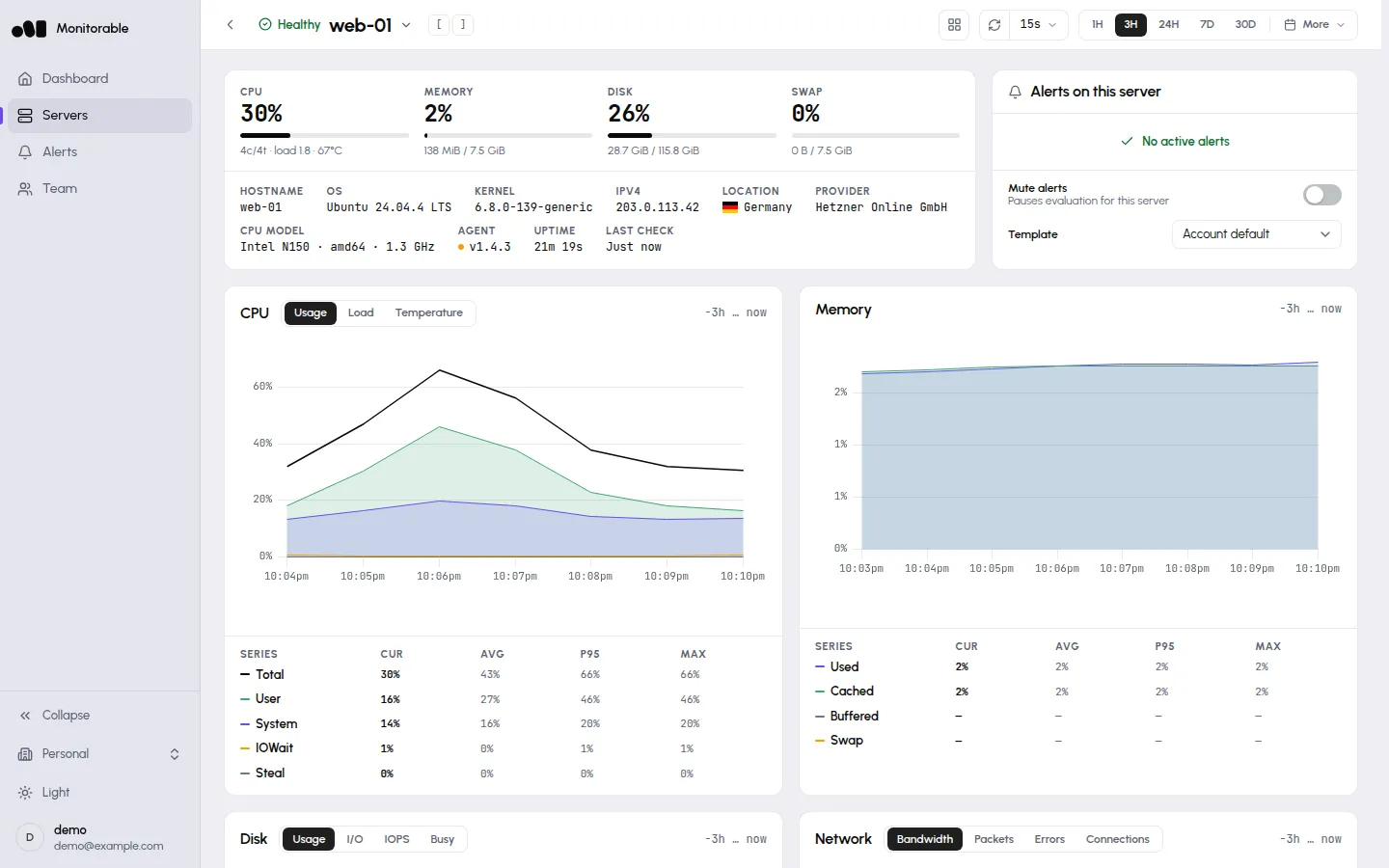
## Reading a chart panel
[Section titled “Reading a chart panel”](#reading-a-chart-panel)
All chart panels share the same controls:
* **Time range** — the **1H**, **3H**, **24H**, **7D**, and **30D** buttons in the page header apply to every panel at once; **More**, at the end of the same bar, holds the remaining presets (6H, 12H, 3D, 15D, 3M, 6M, 1Y) and a custom range. Ranges up to 24 hours draw per-minute points, ranges up to 30 days hourly averages, and longer ones two-hour averages, so long-range charts look smoother than short-range ones. A custom range that starts more than 32 days ago draws two-hour averages whatever its length ([Metrics history & resolution](/docs/account/metrics-history/#how-charts-choose)). Presets longer than your plan’s history are shown locked: muted, with the plan that unlocks them, both in the header bar and under **Longer history** in **More**. A saved or linked window that reaches further back than your plan allows is clipped, and a line above the charts names the date they now start from, which is the limit of your plan’s window, not a statement that nothing was recorded before it.
* **Cur / Avg / P95 / Max** — a stats table under each chart, one row per series, computed from exactly the points the chart is showing. Change the range and the stats follow.
* **Refresh** — the page header has a refresh-now button and an auto-refresh interval (**Off** to **3h**, default **15s**).
* **Layout** — the **Single column** toggle switches the panel grid to one full-width panel per row.
## CPU
[Section titled “CPU”](#cpu)
Three tabs:
* **Usage** — **Total**, **User**, **System**, **IOWait**, and **Steal**, as percentages of the server’s whole CPU capacity: 100% means every core is busy. (Container CPU works differently — see [Docker container monitoring](/docs/metrics/docker-containers/).)
* **Load** — **1m Load**, **5m Load**, **15m Load** load averages.
* **Temperature** — one line per temperature sensor the agent can read; virtual machines usually expose none.
## Memory
[Section titled “Memory”](#memory)
One chart with **Used**, **Cached**, **Buffered**, and **Swap** lines. Cached and buffered memory is reclaimable, so a high cached value is normal on a busy server — watch **Used** and **Swap** for pressure.
## Disk
[Section titled “Disk”](#disk)
Four tabs:
* **Usage** — how full the filesystem is over time.
* **I/O** — read and write throughput.
* **IOPS** — read and write operations per second.
* **Busy** — the share of time the device spent servicing requests.
I/O, IOPS, and Busy break down by physical device (`nvme0n1`, `sda`, …) with the **Per-device** toggle, and the stats grid splits into **Read** and **Write** columns — including a **Total** row for data moved over the visible range.
### Alert before a disk fills up
[Section titled “Alert before a disk fills up”](#alert-before-a-disk-fills-up)
The **Disk usage** rule is on by default on every alert template, at 85% over a 1-hour window: it fires once a filesystem’s hour-long average has been above 85% on two consecutive checks, and every mount gets its own incident, so a full `/var` and a full `/home` are two alerts. It resolves after three consecutive checks below 90% of the threshold (76.5% at the default), so a cleanup that only gets you to 80% keeps the incident open. Lower the threshold, shorten the window, or route it to a channel of its own in the template, following [Set up one alert](/docs/alerting/rules/#set-up-one-alert).
## Network
[Section titled “Network”](#network)
Four tabs — **Bandwidth** (**In**/**Out**), **Packets**, **Errors**, and **Connections** (TCP connections by state, such as **Established** and **LISTEN**). Bandwidth is shown in bits per second (`kbps`, `Mbps`), the unit of your link speed and of the network alert thresholds. Its stats table has an **In** and an **Out** row and adds a **Total** column: data transferred over the visible range, in bytes (`MiB`, `GiB`).
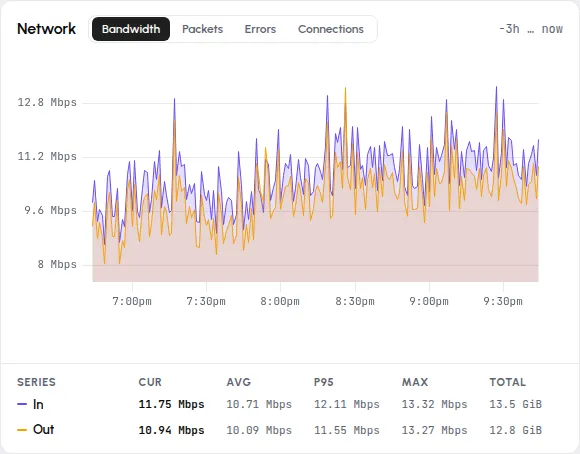
## When a panel is missing
[Section titled “When a panel is missing”](#when-a-panel-is-missing)
Panels reflect what the agent finds on the server: without reachable Docker the **Containers** panel stays at “No containers detected on this server” ([details](/docs/metrics/docker-containers/)), and the Disk panel’s **SMART** tab renders only for physical drives on bare-metal servers. [A panel is missing or empty](/docs/troubleshooting/missing-panels/) walks the checks panel by panel. If every panel is empty and the banner above the gauges says **Stale** or **Offline**, that’s a delivery problem, not a display one — start with [No data appearing](/docs/troubleshooting/no-data/).
# Listening ports and connections
> The Ports panel lists the TCP ports your server listens on with a connection count for each, and an optional alert fires when a port stops listening.
Every server running agent v1.5.0 or newer gets a **Ports** panel on its page, below **Services**. It answers two questions without an SSH session: “what is this server listening on?” and “how many clients are connected to each port?”. There is nothing to install or configure beyond the agent itself, and the panel fills in within a couple of minutes of the agent upgrading.
## What the panel shows
[Section titled “What the panel shows”](#what-the-panel-shows)
Each listening TCP port is a row:
| Column | Meaning |
| --------------- | ----------------------------------------------------------------------------------------------------------------------------------------------- |
| **Port** | The port number. |
| **Service** | The name your server’s `/etc/services` file gives the port (`ssh` for 22, `https` for 443), or `—` when it has none. |
| **Scope** | **Local** when the port accepts connections from the server itself only (loopback addresses), **Exposed** when it listens on any other address. |
| **Connections** | Established connections to the port, averaged over the last minute, with the busiest moment in brackets when it differs: `4` or `4 (peak 7)`. |
| **Trend** | A small chart of those connection counts over the range you are viewing. |
| **Status** | **Listening**, or **Missing for 12m** once the port has stopped listening. |
The table shows the first 10 rows and a **Show all** link for the rest. **Ports that went missing sort first** and dim, so the one that needs a look is never hidden behind **Show all**. A missing port stays on the list for 25 hours, then drops off (one that listened for less than 10 minutes drops off at once).
A few details worth knowing:
* **Connection counts cover the 30 lowest-numbered ports.** The panel says so in its header: “Connection counts for the 30 lowest ports”. A server with more listeners than that still lists them (up to 1,000), but the ports beyond the cut can show `—` instead of a count, a scope, or a service name.
* **Local versus Exposed is about the address a port listens on**, not your firewall. A port reads **Exposed** when it listens on `0.0.0.0` or `::`, even if a firewall blocks it from outside.
* **A port is one row**, whether it listens on IPv4, IPv6, or both.
* When a server’s last report is more than three minutes old, the header adds “Last update 12m ago” so stale rows don’t pass for fresh ones.
* On an agent older than v1.5.0 the panel says “Requires agent v1.5.0 or newer”; [update the agent](/docs/agent/updating-uninstalling/) and the panel fills in. A current agent on a server with no TCP listeners shows “No listening ports reported”.
## What is collected, and what is not
[Section titled “What is collected, and what is not”](#what-is-collected-and-what-is-not)
The agent reads the kernel’s TCP socket tables every 10 seconds and sends one summary per minute. Per listening port that is:
* the port number, the service name from `/etc/services`, whether it is local or exposed, and whether it listens on IPv4, IPv6, or both;
* the average and peak number of established connections to that port across the minute’s samples.
The agent never collects UDP ports, process names, process IDs, or command lines, and it never records local or remote addresses or who is connected. A connection is only counted against the port it arrived on. The field list is in [What the agent collects](/docs/agent/what-is-collected/#listening-ports-every-60-seconds); the agent itself still opens no listening ports of its own.
## Container ports read near zero
[Section titled “Container ports read near zero”](#container-ports-read-near-zero)
The count is the number of connections the server’s own network stack holds open to the listening socket. Docker forwards outside traffic for a published port straight into the container, so the host’s listener (`docker-proxy`) sees almost none of it and the count usually reads near zero. The port is still listed, and the alert still works for it. A Kubernetes NodePort has no listener on the host at all, so it may not appear in the panel and the alert can’t watch it.
## Get told when a port disappears
[Section titled “Get told when a port disappears”](#get-told-when-a-port-disappears)
The **Listening port disappeared** rule, in the **Ports** group of the template editor, opens an incident when a port that had been listening stops. It is **off by default** in every template. To use it, open **Alerts → Templates**, click a template, and enable it.
* **Window.** The port must stay gone for the rule’s window before it fires. The default is 5 minutes and the dropdown goes up to 6 hours. A short window catches a crashed database quickly; a longer one rides out planned restarts.
* **Only ports that had been listening for 10 minutes.** A port that was up for less than that when it vanished (a test server you started and stopped, a short-lived job) disappears silently, with no incident.
* **Agent outages don’t count.** Only minutes in which the agent was reporting count toward the window, and a port still down when the agent returns starts its window over. While the agent is silent, port incidents neither open nor resolve; a long outage is what **Agent offline** reports.
* **One incident per port**, named after it: “Port 5432 has not been listening for 6 minutes”.
* **Coming back resolves it.** When the port listens again, the incident recovers and the usual resolve notice goes out after the [15-minute hold](/docs/alerting/rules/#resolving-reopening-and-removed-entities).
* **Gone for good retires it.** After 24 hours missing, the incident closes as **Retired** (“not seen for 24 h” in the incident list), with no resolve notice. A retired port does not alert again if the agent goes quiet and comes back afterwards.
The rule sits with the others in the [alert rules reference](/docs/alerting/rules/#state-rules). The panel works the same whether or not the rule is enabled.
# Alert when a systemd service fails
> The agent snapshots systemd units over D-Bus every 5 minutes; Systemd unit failed fires within one cycle, and a restart loop has its own rule.
Get told when a `.service` unit on any of your servers enters the failed state or keeps restarting, without writing an `OnFailure=` handler or a cron check per server. Every server with systemd gets a **Services** panel on its page — nothing to install or configure beyond the agent itself. The agent takes a snapshot of the server’s systemd services every 5 minutes over D-Bus, so the panel answers “what’s running, what’s failed, and what’s eating memory” without an SSH session, and two alert rules watch the same snapshot.
## The table
[Section titled “The table”](#the-table)
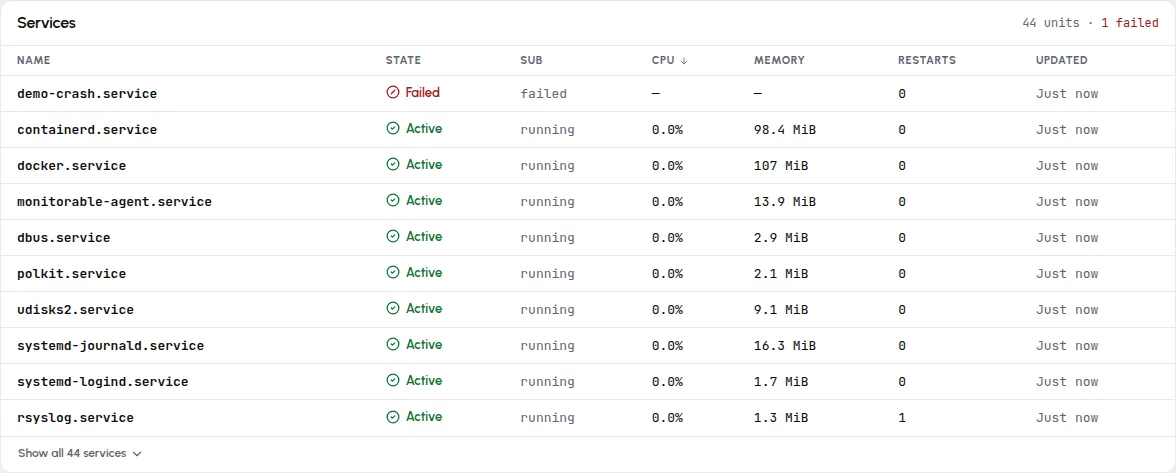
The header counts what the last snapshot saw — “43 units · 43 active” on a healthy server, “44 units · 1 failed” when something is wrong. **Failed units always sort to the top**, whatever column you sort by; the red **Failed** badge is the panel’s whole reason to exist.
| Column | Meaning |
| ------------ | --------------------------------------------------------------------------------------------------------------------------------------------------------------------------------------------------------- |
| **Name** | The unit name, like `nginx.service`. |
| **State** | systemd’s load state: **Active** (green) or **Failed** (red). |
| **Sub** | The sub-state — `running`, `exited` for oneshots that completed, `failed`. |
| **CPU** | The unit’s CPU usage since the previous snapshot, on the whole-server 0–100% scale (not per-core). The first snapshot after an agent start shows `—` — there’s no previous sample to measure against yet. |
| **Memory** | The unit’s current memory, from its cgroup. |
| **Restarts** | How many times systemd has restarted the unit. |
| **Updated** | Age of the snapshot the row came from. |
Click **Name**, **State**, **CPU**, **Memory**, or **Restarts** to re-sort; the default is CPU, highest first.
## Which units appear
[Section titled “Which units appear”](#which-units-appear)
The snapshot covers `.service` units that are active, changing state, or failed. A service that is stopped and *supposed* to be stopped isn’t listed — the panel shows what’s running and what’s broken, not your unit catalog. Per-unit fields and what is never read (unit files, command lines, environments) are listed in [What the agent collects](/docs/agent/what-is-collected/#systemd-services-every-5-minutes).
## The detail sheet
[Section titled “The detail sheet”](#the-detail-sheet)
Click any row for the unit’s full snapshot:
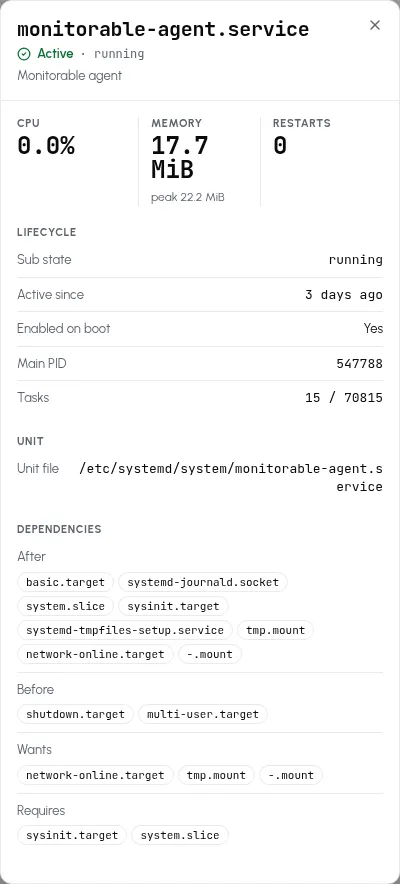
Beyond the table’s numbers, the sheet adds the memory **peak**, **Active since**, **Enabled on boot**, **Main PID**, **Tasks** (current against the unit’s limit), the **Unit file** path, and the unit’s dependency lists (**After**, **Before**, **Wants**, **Requires**). A failed unit has no main process anymore, so its sheet shows the failure state without a **Main PID**.
## Alert when a service fails
[Section titled “Alert when a service fails”](#alert-when-a-service-fails)
The demo-crash failure above is what the **Systemd unit failed** rule catches, and **Systemd restart loop** covers the case a snapshot would miss. Both are on by default:
* **Systemd unit failed** fires as soon as a snapshot sees a `.service` unit in the failed state, with an incident named after the unit — the failure above produced “Systemd unit demo-crash.service is in a failed state” within one snapshot cycle. The incident resolves on its own once the unit is back to active or has been cleaned up with `systemctl reset-failed`.
* **Systemd restart loop** fires when a unit’s restart counter climbs by 3 (the default, 1–50) within 30 minutes (the default window). That is how a service systemd keeps bringing back gets caught: a snapshot every 5 minutes can easily miss the moment it is failed, but the counter doesn’t. It is an event rule — one notification per occurrence, and the incident lands in the history already resolved.
The restart count, the window, and the channels either rule uses are edited in the template: [Set up one alert](/docs/alerting/rules/#set-up-one-alert) has the clicks, and the edge cases, such as a transient unit cleaned up with `reset-failed` while its incident is open, are under [Resolving, reopening, and removed entities](/docs/alerting/rules/#resolving-reopening-and-removed-entities).
## Doing this with plain systemd
[Section titled “Doing this with plain systemd”](#doing-this-with-plain-systemd)
If you’d rather not run an agent, systemd itself can start one unit when another fails. A template handler like this, saved as `/etc/systemd/system/notify-failed@.service`, writes a line to the journal; put your mail or webhook command in `ExecStart` instead:
```ini
[Unit]
Description=Report that %i failed
[Service]
Type=oneshot
ExecStart=/usr/bin/logger -t notify-failed "%i failed on %H"
```
Attach it to each service you care about with a drop-in (`systemctl edit nginx.service` opens one):
```ini
[Unit]
OnFailure=notify-failed@%n.service
```
When the service fails, its journal shows the trigger, and the handler’s line lands under its own tag:
```bash
journalctl -u demo-crash.service --since "-5 min"
```
```text
Oct 26 15:11:46 web-01 systemd[1]: demo-crash.service: Main process exited, code=exited, status=1/FAILURE
Oct 26 15:11:46 web-01 systemd[1]: demo-crash.service: Failed with result 'exit-code'.
Oct 26 15:11:46 web-01 systemd[1]: demo-crash.service: Triggering OnFailure= dependencies.
```
```bash
journalctl -t notify-failed --since "-5 min"
```
```text
Oct 26 15:11:46 web-01 notify-failed[3061106]: demo-crash.service failed on web-01
```
What this route leaves out: the handler runs one command per failure and the journal is its only record, so there is nothing to look back on across servers. Delivery is yours to build — `logger` only writes a line, and mailing or posting from every server means a mail setup or a script on each. With `Restart=` set, a crash-looping service passes through the failed state on every attempt in systemd’s default restart mode, so the handler runs on each crash until the start limit stops the restarts (five runs in five seconds in this test, and the sixth failure, the one after the start limit, ran no handler at all), and nothing tells a loop apart from a single failure. The two rules above cover both cases and keep the history in one place.
# A panel is missing or empty
> Usually by design — panels reflect what the agent finds on the server; these checks separate expected absence from a fixable permission gap.
A server’s page shows panels for what its agent actually finds — a server with no Docker, no physical drives, or no failed services has less to show, and that’s not an error. The checks below assume the agent is reporting — the server’s status is **Healthy** rather than **Stale** or **Offline** — and its CPU and memory charts are drawing; if *everything* is empty, the problem is delivery, not display — start with [No data appearing](/docs/troubleshooting/no-data/) instead.
## The Containers panel says “No containers detected on this server.”
[Section titled “The Containers panel says “No containers detected on this server.””](#the-containers-panel-says-no-containers-detected-on-this-server)

The panel is always on the page; this text is what an empty probe leaves behind. Two situations produce it:
* **The server doesn’t run Docker.** Nothing to fix — the panel fills on its own if Docker arrives later, provided the agent can reach it (next point).
* **Docker is running containers, but the agent can’t see them.** Almost always Docker was installed *after* the agent, so the agent’s user never joined the `docker` group. The two-line fix (or a re-run of the install command) is in [Docker container monitoring](/docs/metrics/docker-containers/#if-containers-dont-appear).
## The Disk panel has no SMART tab
[Section titled “The Disk panel has no SMART tab”](#the-disk-panel-has-no-smart-tab)
On virtual servers — VPS, VM, LXC — this is by design, and it’s an absence, not an empty state: virtualized disks expose no SMART data, so the tab doesn’t render at all. [Disk health (SMART)](/docs/metrics/disk-health-smart/) explains the limit.
On a bare-metal server with physical drives, a missing SMART tab usually means the install predates the drives (or the agent was never granted disk capabilities — check the [Permission Limitations card](#check-the-permission-limitations-card)). [Re-run the install command](/docs/agent/install/#re-run-the-same-command-to-upgrade): it re-probes the hardware, grants what the drives need, and the tab appears within a few minutes of the service restarting.
## A service is missing from the Services panel
[Section titled “A service is missing from the Services panel”](#a-service-is-missing-from-the-services-panel)
The 5-minute snapshot covers `.service` units that are active, changing state, or failed — a unit that is stopped *and supposed to be stopped* isn’t listed, by design. If the unit is genuinely running and still absent, remember the panel’s snapshot cadence: a just-started unit can take one 5-minute cycle to show. [Which units appear](/docs/metrics/systemd-services/#which-units-appear) has the selection rules.
## The Ports panel says “Requires agent v1.5.0 or newer”
[Section titled “The Ports panel says “Requires agent v1.5.0 or newer””](#the-ports-panel-says-requires-agent-v150-or-newer)
The Ports panel needs agent v1.5.0 or newer. On an older agent it shows that message instead of rows; [update the agent](/docs/agent/updating-uninstalling/) and the table fills in within a couple of minutes. “No listening ports reported” on a current agent means the server has no TCP listeners, or the agent hasn’t sent its first port report yet. [Listening ports and connections](/docs/metrics/listening-ports/) covers what the panel shows.
## The CPU panel’s Temp tab shows no sensors
[Section titled “The CPU panel’s Temp tab shows no sensors”](#the-cpu-panels-temp-tab-shows-no-sensors)
The agent charts every temperature sensor it can read. Virtual servers usually expose none, so an empty **Temp** tab on a VM has nothing to fix — see the [CPU panel](/docs/metrics/host-metrics/#cpu) notes.
## Check the Permission Limitations card
[Section titled “Check the Permission Limitations card”](#check-the-permission-limitations-card)
Whatever the missing panel, scroll to the bottom of the server’s page. If the agent skipped a check for lack of a privilege you can grant, the **Permission Limitations** card is there and names the check and the grant. No card at all means nothing was skipped for that reason — a feature the server simply doesn’t have (temperature sensors or SMART data on a virtual machine) is never listed.
If the card names something the install script can grant — disk (SMART) capabilities or Docker socket access — [re-run the install command](/docs/agent/install/#re-run-the-same-command-to-upgrade); it re-probes the server and grants what the hardware calls for. What the card can and can’t report is covered in [Requirements & permissions](/docs/agent/requirements-permissions/#when-the-agent-lacks-a-permission).
## Still stuck
[Section titled “Still stuck”](#still-stuck)
Grab the last few minutes of agent logs:
```bash
journalctl -u monitorable-agent --since "-10m" --no-pager
```
A healthy agent logging no errors while a panel stays empty means the server genuinely has nothing to report for it. If the logs show delivery errors instead, switch to [No data appearing](/docs/troubleshooting/no-data/) — the named error sections there cover each one.
# The agent is installed but no data appears
> Usually the agent service isn't running or its first 60-second batch hasn't arrived; after that, check the logs for a delivery error.
You ran the install command, the server is in the dashboard, and nothing arrives: the server shows **Stale** or **Offline** (or **Needs attention** because its **Agent offline** rule fired), or its page says “No historical data available” or “Metrics will appear once the agent starts sending data.” Whether `monitorable-agent.service` is running or not, the checks below find the cause on the affected server, ordered by how often each turns out to be it. (If just one panel is empty while the rest draw normally, that’s [A panel is missing or empty](/docs/troubleshooting/missing-panels/), not this page.)
## Give a fresh install 60 seconds
[Section titled “Give a fresh install 60 seconds”](#give-a-fresh-install-60-seconds)
The agent sends its first batch about a minute after `monitorable-agent.service` starts, and the dashboard draws points shortly after they arrive. If you ran the install command less than a minute ago, this is the whole explanation.
## Check the service is running
[Section titled “Check the service is running”](#check-the-service-is-running)
```bash
systemctl status monitorable-agent
```
Healthy looks like `Active: active (running)`. A stopped agent looks like:
```text
○ monitorable-agent.service - Monitorable agent
Loaded: loaded (/etc/systemd/system/monitorable-agent.service; enabled; preset: enabled)
Active: inactive (dead) since Sat 2026-07-11 09:15:03 UTC; 14ms ago
```
Start it and confirm it stays up:
```bash
systemctl start monitorable-agent
systemctl is-active monitorable-agent
```
If the service is missing entirely (`Unit monitorable-agent.service could not be found`), the agent isn’t installed on this server — run the [install command](/docs/agent/install/).
A running service does not by itself mean data is flowing: delivery failures don’t stop the service. The remaining checks read the logs:
```bash
journalctl -u monitorable-agent -f
```
## The logs say “Exporting failed. Will retry the request after interval.”
[Section titled “The logs say “Exporting failed. Will retry the request after interval.””](#the-logs-say-exporting-failed-will-retry-the-request-after-interval)
```text
info internal/retry_sender.go:133 Exporting failed. Will retry the request after interval.
{..., "error": "failed to make an HTTP request: Post \"https://ingest.monitorable.net/v1/metrics\":
dial tcp: lookup ingest.monitorable.net on 1.1.1.1:53: no such host", "interval": "6.930527828s"}
```
The agent can’t reach the ingest endpoint — DNS failure, blocked outbound HTTPS, or a proxy in the way. It retries with backoff and keeps recent batches queued, so metrics resume on their own once the network path works. Confirm reachability from the server:
```bash
curl -s -o /dev/null -w '%{http_code}\n' https://ingest.monitorable.net/v1/metrics
```
```text
405
```
`405` is the healthy answer — the endpoint is reachable and answering (it just doesn’t accept a plain GET). A DNS or connection error from curl means the server’s outbound path is the problem, not the agent.
## The logs say “Exporting failed. Dropping data.” with HTTP Status Code 401
[Section titled “The logs say “Exporting failed. Dropping data.” with HTTP Status Code 401”](#the-logs-say-exporting-failed-dropping-data-with-http-status-code-401)
```text
error internal/queue_sender.go:50 Exporting failed. Dropping data.
{..., "error": "not retryable error: Permanent error: rpc error: code = Unauthenticated
desc = error exporting items, request to https://ingest.monitorable.net/v1/metrics
responded with HTTP Status Code 401", "dropped_items": 194}
```
The endpoint rejected the agent’s API key, and this is not retried — each batch is dropped. Two common ways to get here:
* The key doesn’t match the server row in the dashboard (a hand-edited or copy-pasted-from-another-server key).
* The server was removed in the dashboard. Removing a server revokes its API key, so an agent still running on that server gets `401` from then on.
The fix is a fresh key: remove the server in the dashboard if it still exists (**Server actions → Remove** on its row), add it again, and run the new install command from the dialog. Re-running the install with the new key replaces the stored one.
## The logs say “Exporting failed. Dropping data.” with HTTP Status Code 404
[Section titled “The logs say “Exporting failed. Dropping data.” with HTTP Status Code 404”](#the-logs-say-exporting-failed-dropping-data-with-http-status-code-404)
```text
error internal/queue_sender.go:50 Exporting failed. Dropping data.
{..., "error": "not retryable error: Permanent error: rpc error: code = Unimplemented
desc = error exporting items, request to https://app-api.monitorable.io/v1/metrics
responded with HTTP Status Code 404", "dropped_items": 194}
```
The agent is posting to an address that doesn’t serve ingest — a hand-edited endpoint (in the example above, the dashboard’s API host), or an agent installed before an endpoint change. Reinstall with a current install command: get it from the dashboard by removing and re-adding the server, then [run it as root](/docs/agent/install/). The install rewrites the endpoint the service uses.
## Get told next time the agent goes quiet
[Section titled “Get told next time the agent goes quiet”](#get-told-next-time-the-agent-goes-quiet)
The **Agent offline** rule is on by default on every alert template: it fires when a server’s last report is older than 5 minutes (the rule’s window, which is also the minimum) and sends one notification instead of the usual three, since a server that went offline only needs saying once. It is the one rule that fires without data arriving, so it covers every case on this page. Its window and channel are changed in the template, following [Set up one alert](/docs/alerting/rules/#set-up-one-alert).
## Still stuck
[Section titled “Still stuck”](#still-stuck)
Collect the last minutes of agent logs:
```bash
journalctl -u monitorable-agent --since "-10m" --no-pager
```
and note your server’s status in the dashboard (Stale or Offline vs. Healthy with empty panels). Those two together identify almost every remaining case. If they don’t, email them to — the logs above contain no API key, so they are safe to paste as-is.
If an incident’s timeline shows *Monitorable not receiving*, the gap was on our side, not your server’s.